





Check requirements
- A ChatGPT account that can add custom MCP servers from the plugins page.
- A NeetoForm account.
Connect NeetoForm to ChatGPT
- Go to chatgpt.com/plugins, click Add at the top right, and choose Add custom MCP server.
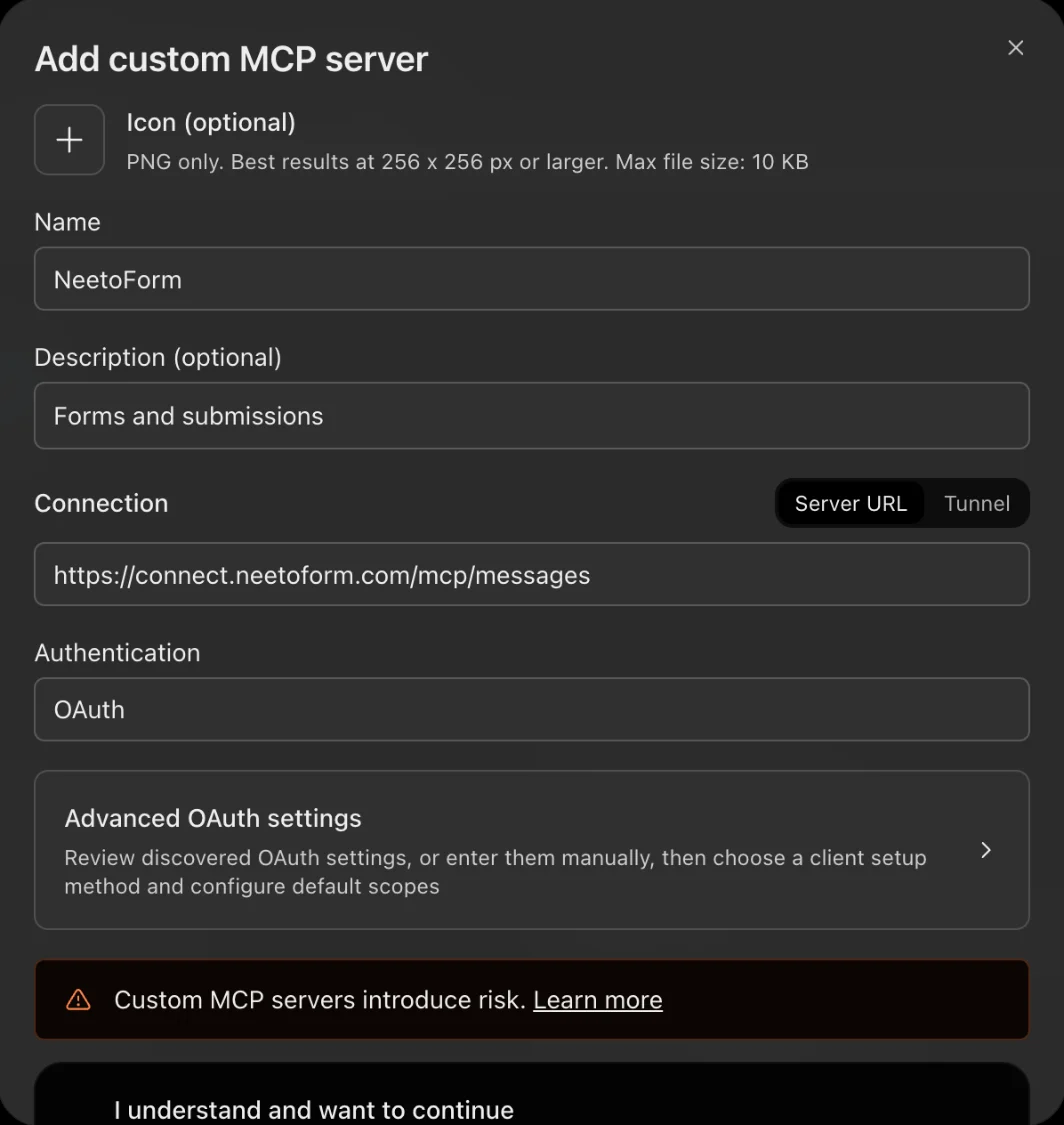
- Name it NeetoForm, keep the connection on Server URL, and paste
https://connect.neetoform.com/mcp/messages. - Leave authentication on OAuth, tick I understand and want to continue, and click Create as a plugin. Then sign in to NeetoForm.
Connect in the ChatGPT desktop app
- Click your profile picture at the bottom left, then click Settings.
- Click Plugins. Click Add, then click Add MCP server.
- Enter the name NeetoForm and set Type to Streamable HTTP.
- In URL, paste
https://connect.neetoform.com/mcp/messages. - Leave the other fields empty and click Save.
- Click the MCPs tab. Next to neetoform, click Authenticate.
- Sign in to NeetoForm.
Try these prompts
Get answers from your forms and submissions
Your forms contain valuable information. Instead of going through submissions manually, you can ask your AI assistant questions and get answers. Try these:
Which of my forms are currently accepting submissions?
Which active forms haven't received a single submission?
Which form has received the most submissions?
Find my form about onboarding feedback and show me its questions.
Show me the 10 most recent submissions to the Contact sales form.
How many people registered for the webinar this week?
Who created the Event registration form, and when was it created?
Which forms have we archived?
Your AI assistant reads your forms and submissions to find the answers. For questions involving thousands of submissions, the CLI may be a better fit. See MCP or CLI: which should you use?
Analyze responses
Summarize free-text feedback
Read the free-text responses from the Lifeline Run registration form. What are people asking about? Which themes came up repeatedly?
Instead of reading every response, you get a summary of the key themes, supported by a few quotes from respondents.
Calculate a score
Calculate our Net Promoter Score (NPS) from the last 200 responses to the Customer feedback form. Show me the number of promoters, passives, and detractors, along with the main complaints from detractors.
Group requests into themes
Review this month's Feature request submissions. Group the requests by theme, count how many people requested each one, and rank the themes by popularity.
Find leads worth a call
Review this week's Contact sales submissions. List the companies with more than 50 employees and summarize what each company is interested in.
Compare two rounds
Compare the responses from the March and April Workshop feedback forms. What improved, what got worse, and what new feedback emerged?
Find who hasn't responded
Which people registered through the Webinar registration form but haven't completed the Post-webinar survey? Match their submissions using their email addresses.
Spot a confusing question
Review the Customer onboarding form. Identify questions that respondents frequently skip, answer with "N/A", or appear to misunderstand. Suggest clearer wording for those questions.
Draft follow-ups
For everyone who gave us a rating of 6 or lower on the Customer feedback form this month, draft a short, personalized follow-up email based on their feedback. Don't send the emails.
Your AI assistant prepares the email drafts in the chat. You can review, edit, and send them from your own email account.
Manage your team
Invite teammates
Invite oliver@example.com and sam@example.com to our NeetoForm workspace as Standard members.
Change a role
Change oliver@example.com's role to Admin in NeetoForm.
Remove someone who left
Sam has left the company. Deactivate sam@example.com's NeetoForm account.
Deactivating a team member doesn't delete their work. All forms and submissions they created remain intact.
Permissions and privacy
- Your AI assistant uses your NeetoForm permissions. It can only access the forms and submissions you have permission to view and perform actions allowed by your role.
- You control what your AI assistant can do. Read access is always enabled. The Create and update permission allows it to build and change forms, settings, and team members, and to publish forms and send emails. Delete allows it to delete or remove items, such as forms, submissions, and webhooks, and to deactivate team members. Leave both permissions disabled for read-only access.
- Deleting forms and submissions moves them to the trash. You can restore them in NeetoForm.
- Deactivating a team member preserves their forms and submissions. Your assistant cannot deactivate you or the workspace owner.
- You can disconnect at any time. Remove the NeetoForm connector from your AI assistant to revoke its access.
Sign in and choose permissions
When you sign in, enter your workspace subdomain, not your email address. For acme.neetoform.com, enter acme.
What each permission allows
| Permission | What it allows |
|---|---|
| Read | See what your role lets you see in the selected workspaces. Always granted. |
| Stay connected | Keep working without asking you to sign in again. Always granted. |
| Create and update | Add new items and change existing ones. |
| Delete | Permanently delete items. This cannot be undone. |
If you leave a permission unticked, a tool that needs it is refused with a message that names the permission. For example, a read-only connection can list forms and read submissions, but cannot invite, update, or deactivate anyone. Nothing half happens.
For developers: the OAuth metadata is at https://connect.neetoform.com/.well-known/oauth-authorization-server. The server supports the authorization_code and refresh_token grants with PKCE (S256) required. Clients register dynamically at https://connect.neetoform.com/mcp/oauth/register (RFC 7591), and loopback redirect URIs are accepted. Refresh tokens are issued, so you stay signed in.
Disconnect NeetoForm from ChatGPT
Open the ChatGPT plugins page, find NeetoForm and remove it. ChatGPT loses access to your NeetoForm data straight away.
Troubleshooting
Your AI assistant shows no NeetoForm tools
Restart the client first. Every client reads its MCP config at startup. On Claude or ChatGPT, confirm that you added the connector and finished the sign-in. In ChatGPT, the plugin is created only after you tick I understand and want to continue.
On a client that reads a config file, check these:
- The config key. Claude Code, Cursor, Devin, Antigravity, and Antigravity CLI use
mcpServers. VS Code usesservers. Codex uses a[mcp_servers.<name>]section in TOML. A server under the wrong key is ignored. - The URL key. Antigravity and Antigravity CLI use
serverUrl. Claude Code, Codex, Cursor, Devin, and VS Code useurl. - The endpoint. It is
https://connect.neetoform.com/mcp/messages, with no trailing slash. - The syntax. A trailing comma or an unclosed brace in JSON makes the whole file unreadable.
The sign-in fails at the workspace step
The first screen asks for a workspace subdomain or a workspace URL, not an email address. For acme.neetoform.com, enter acme.
Your AI assistant reaches the wrong workspace
Name the workspace in your prompt. To add another workspace, sign in again and tick it. An API key belongs to one workspace, so add the server a second time with the other key and a different server name.
More fixes are in the NeetoForm MCP troubleshooting guide.
Frequently asked questions
Can ChatGPT analyze my NeetoForm responses?
Yes. Connect ChatGPT to the NeetoForm MCP server to find forms, read submissions, analyze responses, calculate scores, and compare results. You can add NeetoForm to ChatGPT as a custom MCP server from the plugins page. See Connect NeetoForm to your AI assistant.
Use NeetoForm in other AI assistants
| AI assistant | Setup guide |
|---|---|
| Claude | Use NeetoForm in Claude |
| Claude Code | Use NeetoForm in Claude Code |
| Cursor | Use NeetoForm in Cursor |
| Codex | Use NeetoForm in Codex |
| VS Code | Use NeetoForm in VS Code |
| Antigravity CLI | Use NeetoForm in Antigravity CLI |
| Devin | Use NeetoForm in Devin |
| Antigravity | Use NeetoForm in Antigravity |
| Any other MCP client | NeetoForm MCP server |
Prefer the terminal? The NeetoForm CLI reaches the same data from your shell, your scripts and your coding agent.