





Check requirements
- A Claude account on the web, desktop or mobile app.
- A NeetoRecord account.
- On a Claude Team or Enterprise plan, an admin must turn NeetoRecord on under Organization settings → Connectors first.
Connect NeetoRecord to Claude
- Open NeetoRecord in the Claude directory and click Connect to Claude.
- Sign in to NeetoRecord, then select your workspace and permissions.
NeetoRecord works with Claude on the web, desktop, and mobile. If you're using a Claude Team or Enterprise plan, an administrator may need to enable NeetoRecord under Organization settings → Connectors.
More ways to connect Claude
NeetoRecord also works in Cowork, along with Claude on the web, desktop, and mobile.
- If the button reads Request instead of Connect to Claude, a Team plan admin must turn NeetoRecord on under Organization settings → Connectors (claude.ai/admin-settings/connectors). Then click Connect to Claude.
- To disconnect, open Customize → Connectors (claude.ai/customize/connectors) and remove NeetoRecord.
- If your organization blocks the connector directory, add it as a custom connector. Open Customize → Connectors, click Add, then click Add custom connector. Enter the name NeetoRecord, paste the server URL, click Continue, and sign in to NeetoRecord.
Try these prompts
Get answers from your recordings
Your recordings contain valuable information. With an AI assistant, you can search that information and get answers without watching every video. Try these prompts:
Find the call where we talked about SSO pricing.
What did I record last week?
Which of our recordings have the most views?
How many views did the onboarding walkthrough get each day?
Which recordings are tagged "customer"?
Which folders hold the most recordings?
Which of my recent recordings are missing transcripts?
Summarize the Q3 roadmap recording. What were the key topics, decisions, and action items?
Your AI assistant searches recording titles and transcripts, reads summaries and chapters, and finds the answers. For tasks involving thousands of recordings, the CLI is a better fit. See MCP or CLI: which should you use?
Understand recordings without watching them
Summarize a recording
Summarize the "Feedback on the new site prototype" recording. Include the key decisions, chapters with timestamps, and a shareable link.
Pull out action items
Review yesterday's sprint planning recording and list all action items, along with the timestamps where they were discussed.
Find common themes across customer calls
Find all recordings where customers discuss exporting data. What did they ask for, and which requests came up most frequently?
Look at what's on screen
A customer has shared a screen recording of a bug. Ask your AI assistant:
Look at the "Checkout fails" recording at 0:48. What error is on the screen, and what did the customer click just before it?
Your AI assistant can examine the video frame at that timestamp and describe what's happening on screen, so you don't have to search through the recording yourself.
Turn a walkthrough into written steps
Turn the "Setting up the Slack integration" recording into a step-by-step guide. Describe what's happening on screen at each step and include the corresponding timestamp.
Organize and share
Give recordings useful titles and tags
Review my ten most recent recordings. Suggest a descriptive title and two or three relevant tags for each. Show me your suggestions before making any changes.
File recordings into a folder
Create a folder named "Customer calls Q4" and move all recordings from this month that have "call" in their titles into it.
Share and embed
Give me the share link and embed code for the pricing walkthrough so I can add the recording to our pricing page.
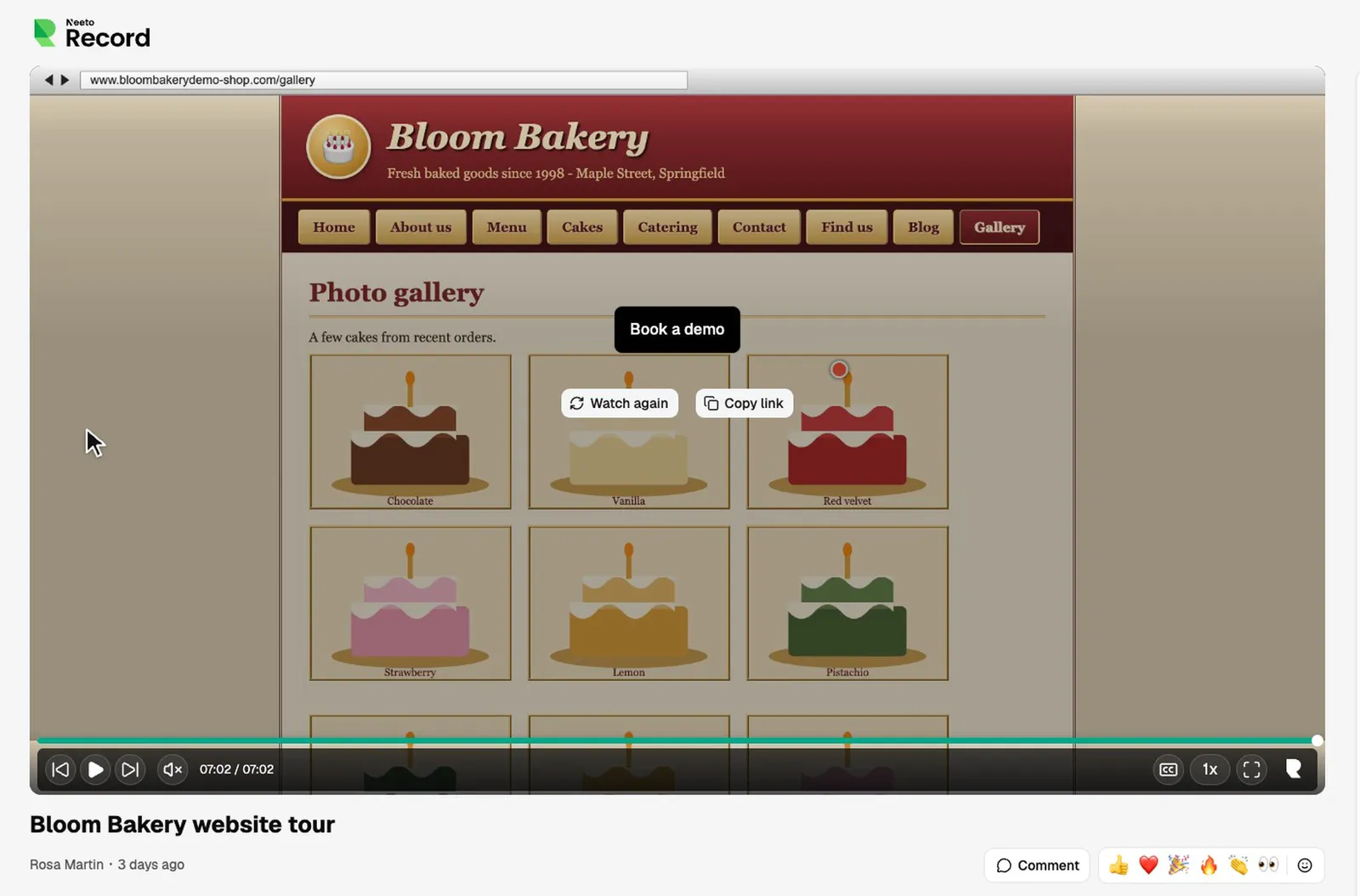
Add a call to action
Add a "Book a demo" button at the end of the website tour recording. Link the button to https://acme.neetocal.com/demo.
Fill in missing transcripts
Review my recordings from the last two weeks. Generate transcripts for any recordings that are missing them, then add chapters.
Ask a customer to record their screen
Create a recording request titled "Show us the checkout bug" with instructions to record the entire process, from adding an item to the cart until the error appears. Give me the link to share with the customer.
The assistant creates the request and hands you the link. You send it however you like.
Clear out test recordings
Find recordings titled "test" or "Untitled" that are shorter than 30 seconds. Show me their titles and dates, and wait for my confirmation before deleting anything.
Deleting a recording is permanent and requires the Delete permission. This prompt ensures you can review the recordings before anything is deleted.
Permissions and privacy
- Your AI assistant uses your NeetoRecord permissions. It can only access the recordings you have permission to view and perform actions allowed by your role.
- You control what your AI assistant can do. Read access is always enabled. The Create and update permission allows it to rename recordings, add tags, move recordings between folders, and add calls to action. The Delete permission allows it to delete recordings. Leave both permissions disabled for read-only access.
- Deleting a recording is permanent. Once deleted, the recording and its associated transcripts, chapters, and analytics cannot be recovered. Grant Delete permission only when necessary.
- Deactivating a team member preserves their recordings. They can no longer sign in, but their recordings remain available in the workspace.
- Your sharing settings remain unchanged. Your AI assistant can retrieve existing share links and embed codes, but it cannot modify a recording's access permissions.
- You can disconnect at any time. Remove the NeetoRecord connector from your AI assistant to revoke its access.
Before renaming, moving, or deleting recordings, we recommend asking your AI assistant to show you its proposed changes for review.
Sign in and choose permissions
When you sign in, enter your workspace subdomain, not your email address. For acme.neetorecord.com, enter acme.
What each permission allows
| Permission | What it allows |
|---|---|
| Read | See what your role lets you see in the selected workspaces. Always granted. |
| Stay connected | Keep working without asking you to sign in again. Always granted. |
| Create and update | Add new items and change existing ones. |
| Delete | Permanently delete items. This cannot be undone. |
If you leave a permission unticked, a tool that needs it is refused with a message that names the permission. Nothing is broken and nothing half happened. For example, a read-only connection can list recordings and read transcripts, but cannot retitle, move, or delete anything. To grant it later, remove the connector and add it again with the box ticked.
For developers: the OAuth metadata is at https://connect.neetorecord.com/.well-known/oauth-authorization-server. The server supports the authorization_code and refresh_token grants, requires PKCE (S256), and issues refresh tokens. Clients register dynamically at https://connect.neetorecord.com/mcp/oauth/register, and loopback redirect URIs are accepted. The scopes are read, write, delete, and offline_access.
Troubleshooting
Your AI assistant shows no NeetoRecord tools
Restart the client first. Every client reads its MCP config at startup.
On Claude or ChatGPT, confirm that you added the connector and finished the sign-in. In ChatGPT, the plugin is created only after you tick I understand and want to continue.
On Claude Code, Cursor, Codex, VS Code, Devin, Antigravity, or Antigravity CLI, check these:
- The config key. Claude Code, Cursor, Devin, Antigravity, and Antigravity CLI nest servers under
mcpServers. VS Code usesservers. Codex uses a[mcp_servers.<name>]section in TOML. A server under the wrong key is ignored silently. - The URL key. Antigravity and Antigravity CLI expect
serverUrl. Claude Code, Codex, Cursor, Devin, and VS Code expecturl. - The endpoint. It is
https://connect.neetorecord.com/mcp/messages, with no trailing slash. - The syntax. In JSON, a trailing comma or an unclosed brace makes the whole file unreadable, which takes out your other servers too.
The sign-in fails at the workspace step
The first screen needs a workspace subdomain or a workspace URL, not an email address. For acme.neetorecord.com, enter acme.
Your AI assistant reaches the wrong workspace
An OAuth connection covers the workspaces you ticked while approving it. To add another, sign in again and tick it. An API key belongs to exactly one workspace, so reaching the wrong one means the wrong key. Add the server a second time with the other key and a different server name.
Claude shows the connector as unauthorized
Open Customize → Connectors (claude.ai/customize/connectors), remove NeetoRecord, and connect it again from the NeetoRecord listing. On a Team plan, Requested means an admin has not turned NeetoRecord on yet. An admin turns it on under Organization settings → Connectors (claude.ai/admin-settings/connectors).
More fixes are in the NeetoRecord MCP troubleshooting guide.
Frequently asked questions
Can Claude summarize my NeetoRecord videos?
Yes. Connect NeetoRecord from the Claude directory to find recordings, generate summaries with chapters and timestamps, and extract action items using plain language.
Use NeetoRecord in other AI assistants
| AI assistant | Setup guide |
|---|---|
| ChatGPT | Use NeetoRecord in ChatGPT |
| Claude Code | Use NeetoRecord in Claude Code |
| Cursor | Use NeetoRecord in Cursor |
| Codex | Use NeetoRecord in Codex |
| VS Code | Use NeetoRecord in VS Code |
| Antigravity CLI | Use NeetoRecord in Antigravity CLI |
| Devin | Use NeetoRecord in Devin |
| Antigravity | Use NeetoRecord in Antigravity |
| Any other MCP client | NeetoRecord MCP server |
Prefer the terminal? The NeetoRecord CLI reaches the same data from your shell, your scripts and your coding agent.