





Check requirements
- A Claude account on the web, desktop or mobile app.
- A NeetoInvoice account.
- On a Claude Team or Enterprise plan, an admin must turn NeetoInvoice on under Organization settings → Connectors first.
Connect NeetoInvoice to Claude
- In Claude, go to Customize → Connectors, click Add, and select Add custom connector.
- Enter NeetoInvoice as the connector name, paste
https://connect.neetoinvoice.com/mcp/messagesas the server URL, and click Continue. - Sign in to your NeetoInvoice account, then select the workspace and permissions you want to grant.
NeetoInvoice works with Claude on the web, desktop, and mobile. On Claude Team and Enterprise plans, an organization owner must first add the connector under Organization settings → Connectors.
More ways to connect Claude
NeetoInvoice also works in Cowork. If the button reads Request instead of Add, ask a Team plan admin to enable it under Organization settings → Connectors at claude.ai/admin-settings/connectors. To disconnect, open Customize → Connectors at claude.ai/customize/connectors and remove NeetoInvoice.
If your directory is blocked, add NeetoInvoice as a custom connector with the server URL above.
Try these prompts
Get answers from your invoicing and timesheet data
NeetoInvoice does more than track time and manage invoices. With an AI assistant, you can ask questions about your hours, projects, clients, and invoices. Try these:
Which invoices are still unpaid?
Which invoices are overdue?
How much have we invoiced Acme this quarter?
How many unbilled hours do we have on the Acme website project for September?
How many hours did each person log last week?
Which days did Oliver forget to log time this month?
Who's working on the Website redesign project, and what is each person's hourly rate?
How much PTO does Oliver have left?
How many loss-of-pay (LOP) days did our team have last month?
Which clients have we archived?
Your AI assistant reads your invoices, time entries, and reports to find the answers. For recurring tasks, such as weekly timesheet reports, the CLI is a better fit. See MCP or CLI: which should you use?
Track time
Log your time in one sentence
Log 3 hours yesterday on Northwind, Website redesign, Design. Note: reworked the pricing page mockups.
Your AI assistant finds the right client, project, and task, then logs the time without making you navigate through multiple menus.
Log an entire day's work from your notes
Paste your notes or calendar for the day and ask:
Turn these notes into time entries for today. Match each item to the correct client, project, and task. Show me the entries for review before saving them.
Fix a mistake
My time entry for the Acme project on Tuesday should be 4.5 hours, not 5.5. Please correct it.
Time entries that have already been invoiced cannot be edited. Your AI assistant can only modify unbilled time entries.
Find missing timesheet entries
Find everyone on the team who missed logging time last week. List the missing dates for each person.
Invoice clients
Create an invoice from unbilled time
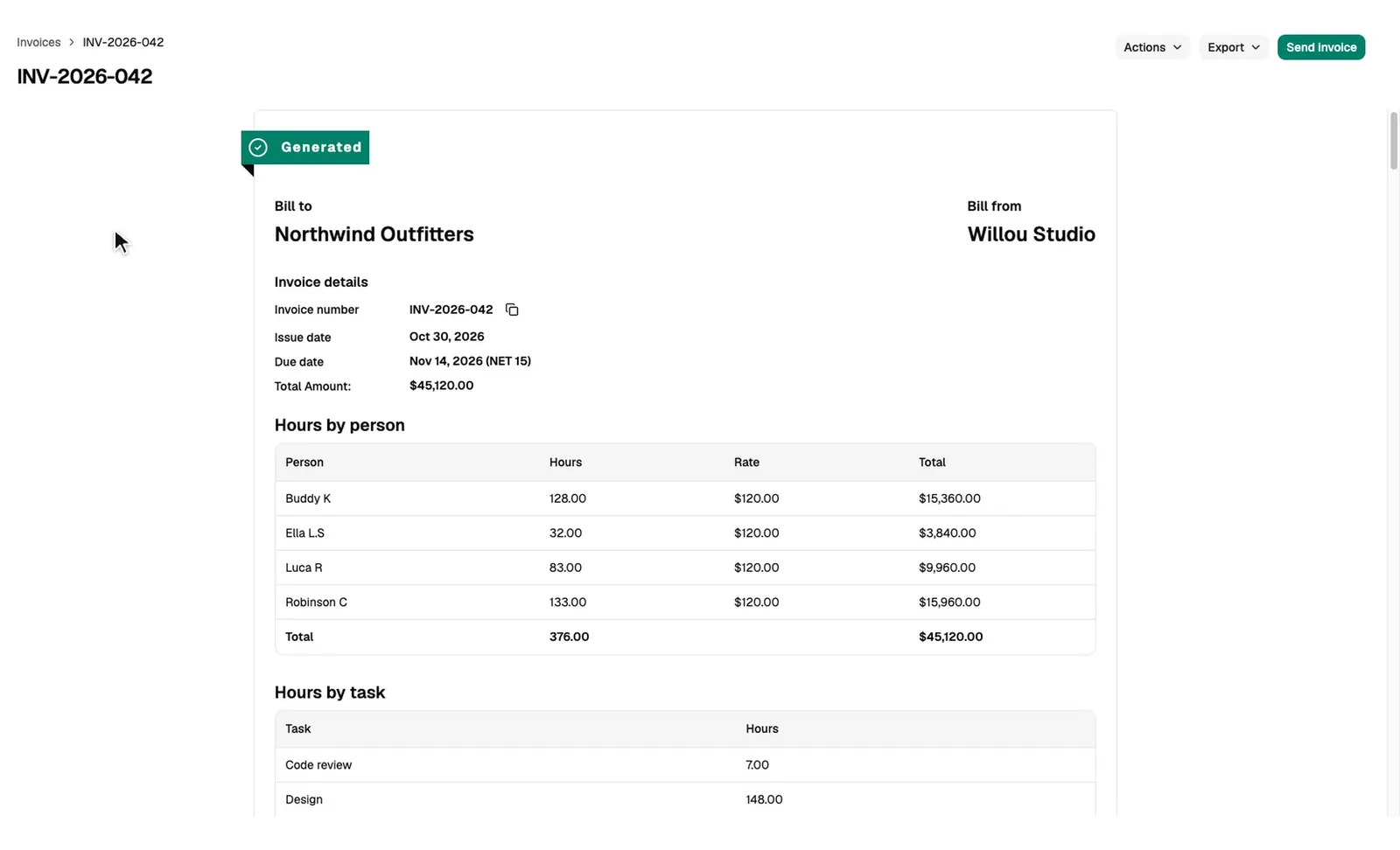
Create an invoice for Northwind using all unbilled time from the Website redesign project in October. Use invoice number INV-2026-042 and set the payment due date to 15 days from today. Don't send it yet.
Your AI assistant gathers the unbilled time entries, creates the invoice, and leaves it ready for your review.
Create a fixed-fee invoice
Create an invoice for Summit for a $4,000 monthly retainer. Add the note "October support retainer" and use invoice number INV-2026-043.
Send an invoice
Send invoice INV-2026-042 to Northwind's billing contacts, with the PDF attached and a short thank-you message. Send me a copy too.
Follow up on overdue invoices
Find invoices that are more than 15 days past due. Show me the list, then resend each one with a polite reminder once I confirm.
Set things up
Add a new client and project
Add a new client, Summit, with Jane Cooper (jane@summit.com) as the billing contact. Create a Website project for them billed at $120 an hour, with Design and Development tasks, and add Oliver as project manager.
Change someone's rate
Change Sam's hourly rate on the Website redesign project to $95.
Invite your accountant
Invite accountant@example.com to NeetoInvoice with the Accountant role.
Update PTO
Set this month's PTO earned to 12 hours for oliver@example.com and sam@example.com.
Permissions and privacy
- Your AI assistant uses your NeetoInvoice permissions. It can only access information and perform actions allowed by your role. For example, if you can only view your own time entries, your AI assistant cannot access the rest of your team's entries.
- You control what your AI assistant can do. Read access is always enabled. The Create and update permission allows it to log time, create invoices, and manage clients and projects. The Delete permission allows it to delete unbilled time entries, remove invoice recipients and project members, and deactivate team members. Leave both permissions disabled for read-only access.
- Billed time is locked. Once a time entry has been included in an invoice, it cannot be edited or deleted.
- Sending is a separate step. Creating an invoice doesn't email anyone unless you ask your AI assistant to send it. Your AI assistant can send invoices only to the billing contacts already associated with the client, plus an optional copy to you.
- You can disconnect at any time. Remove the NeetoInvoice connector from your AI assistant to revoke its access.
Sending an invoice triggers an email to your client. We recommend reviewing the invoice and its recipients before asking your AI assistant to send it.
Sign in and choose permissions
When you sign in, enter your workspace subdomain, not your email address. For acme.neetoinvoice.com, enter acme.
What each permission allows
| Permission | What it allows |
|---|---|
| Read | See what your role lets you see in the connected workspaces. Always granted. |
| Stay connected | Keep working without asking you to sign in again. Always granted. |
| Create and update | Add new items and change existing ones. |
| Delete | Permanently delete items. This cannot be undone. |
If you leave a permission unticked, a tool that needs it is refused with a message that names the permission. A read-only connection can list time entries and check unbilled totals, but it cannot log time, generate an invoice, or delete anything.
For developers: the OAuth metadata is at https://connect.neetoinvoice.com/.well-known/oauth-authorization-server. The server supports the authorization_code and refresh_token grants, with PKCE (S256) required. Clients register dynamically at https://connect.neetoinvoice.com/mcp/oauth/register, and loopback redirect URIs are accepted. Refresh tokens are issued, so you stay signed in.
Troubleshooting
Your AI assistant shows no NeetoInvoice tools
Restart the client first. Every client reads its MCP config at startup. On Claude or ChatGPT, confirm that you added the connector and finished the sign-in. In ChatGPT, the plugin is created only after you tick I understand and want to continue.
On Claude Code, Cursor, Codex, VS Code, Devin, Antigravity, or Antigravity CLI, check these:
- The config key. Claude Code, Cursor, Devin, Antigravity, and Antigravity CLI use
mcpServers. VS Code usesservers. Codex uses a[mcp_servers.<name>]section in TOML. A server under the wrong key is ignored silently. - The URL key. Antigravity and Antigravity CLI expect
serverUrl. Claude Code, Codex, Cursor, Devin, and VS Code expecturl. - The endpoint. It is
https://connect.neetoinvoice.com/mcp/messages, with no trailing slash. - The syntax. In JSON, a trailing comma or an unclosed brace makes the whole file unreadable.
Your AI assistant reaches the wrong workspace
An OAuth connection covers the workspace you entered and any additional workspaces you ticked. Name the workspace in your prompt. To add another, sign in again and tick it. An API key belongs to one workspace, so add the server a second time with the other key and a different name.
Claude shows the connector as unauthorized
Open Customize → Connectors, remove NeetoInvoice, and add it again as a custom connector. On a Team plan, an Owner must first add the server URL under Organization settings → Connectors.
More fixes are in the NeetoInvoice MCP troubleshooting guide.
Frequently asked questions
Can Claude create invoices in NeetoInvoice?
Yes. Connect NeetoInvoice to Claude using a custom connector to review unbilled time, create invoices, and send them to clients using plain language.
Use NeetoInvoice in other AI assistants
| AI assistant | Setup guide |
|---|---|
| ChatGPT | Use NeetoInvoice in ChatGPT |
| Claude Code | Use NeetoInvoice in Claude Code |
| Cursor | Use NeetoInvoice in Cursor |
| Codex | Use NeetoInvoice in Codex |
| VS Code | Use NeetoInvoice in VS Code |
| Antigravity CLI | Use NeetoInvoice in Antigravity CLI |
| Devin | Use NeetoInvoice in Devin |
| Antigravity | Use NeetoInvoice in Antigravity |
| Any other MCP client | NeetoInvoice MCP server |
Prefer the terminal? The NeetoInvoice CLI reaches the same data from your shell, your scripts and your coding agent.