





Check requirements
- A ChatGPT account that can add custom MCP servers from the plugins page.
- A NeetoCal account.
Connect NeetoCal to ChatGPT
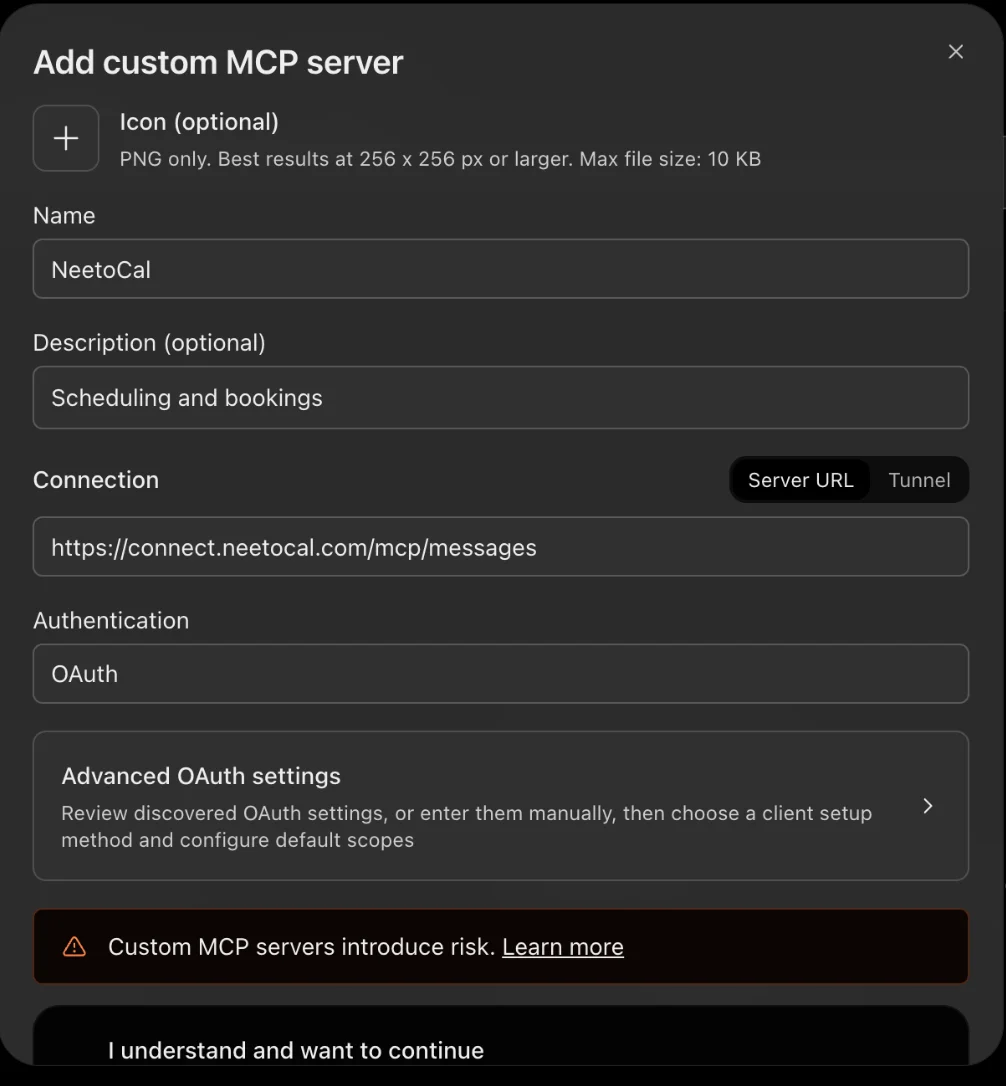
- Open the ChatGPT plugins page, click Add at the top right, and select Add custom MCP server.
- Enter NeetoCal as the name, keep Server URL as the connection type, and paste
https://connect.neetocal.com/mcp/messages. - Keep OAuth as the authentication method, tick I understand and want to continue, and click Create as a plugin. Then sign in to NeetoCal.
Connect in the ChatGPT desktop app
- Click your profile picture at the bottom left, then click Settings.
- Click Plugins. Click Add, then click Add MCP server.
- Enter the name NeetoCal and set Type to Streamable HTTP.
- In URL, paste the server URL. Leave the other fields empty and click Save.
- Click the MCPs tab. Next to neetocal, click Authenticate, then sign in to NeetoCal.
Try these prompts
Get answers from your scheduling data
Your AI assistant can do more than manage your NeetoCal schedule. It can also answer questions about your bookings, availability, and scheduling patterns. Try these:
Why don't I have any available slots on Thursday?
When is my next meeting with someone from Acme?
How many Product Demo meetings did we have last month?
Who on my team has the most open slots tomorrow afternoon?
Which of my meeting types gets booked the most?
How many bookings were canceled last month?
Which customers have booked more than three meetings with me this year?
What are my busiest days of the week, based on the last three months?
How much time am I spending in meetings each week?
Which meeting types have the highest cancellation rate?
Your AI assistant analyzes your meetings and bookings to find the answers. For questions involving thousands of bookings, the CLI may be a better option. See MCP or CLI: which should you use?
Let AI help manage your schedule
Find a time that works for everyone
Find a 45-minute slot next week when Tony, Oliver and Sam are all available. Avoid Monday morning and Friday afternoon. Don't book anything yet. Give me the three best options.
Your AI assistant checks everyone's availability, finds overlapping time slots, and suggests options without making a booking.
Find out why nobody can book me
Customers say they can't find any available slots with me next week. Check my availability, existing bookings, and time off, and tell me what's preventing them from booking.
Instead of checking multiple settings yourself, you get an explanation of what's preventing bookings. It could be limited working hours, an overlooked date override, or a fully booked week.
Answer a scheduling question
Can Jane from Acme book a 60-minute Strategy Session with me next Wednesday afternoon? Check my availability and meeting settings and tell me what's possible.
Your AI assistant checks the available meeting durations and open slots, then tells you which options work. You decide whether to proceed with the booking.
Prepare for tomorrow
Show me tomorrow's schedule. For each meeting, tell me who I'm meeting with, the meeting type, and whether we've met before.
Clean up the calendar
Review my bookings for next week. Flag any days with more than four meetings or three consecutive meetings. Suggest which meetings would be easiest to reschedule, but don't make any changes.
Find a customer
Find every booking I've had with anyone from acme.com in the last six months. Tell me who I met, how many times we met, and when we last spoke.
Find repeat cancellations
Review cancellations from the last 90 days. Which customers have canceled more than once? Show me their booking history.
Let AI manage your bookings
Book a meeting straight from an email
A prospect emails you asking to meet next Tuesday afternoon. Paste the email into Claude and ask:
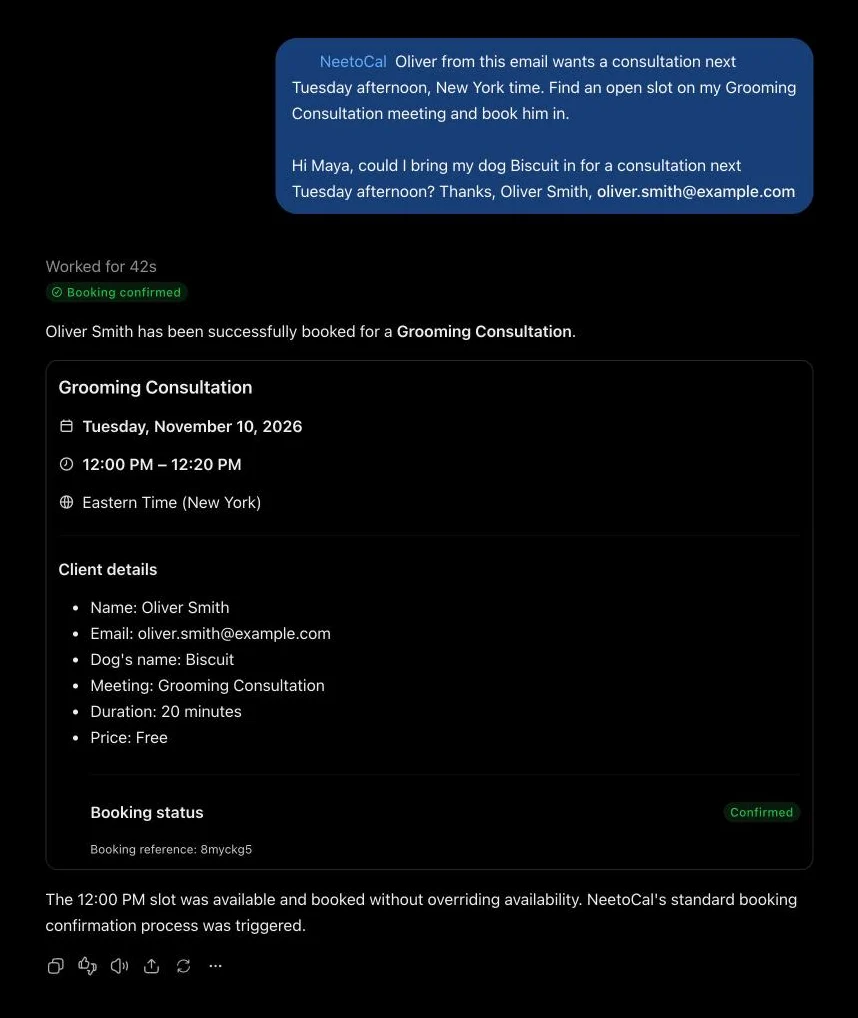
Oliver from this email wants a consultation next Tuesday afternoon, New York time. Find an open slot on my Grooming Consultation meeting and book him in.
Your AI assistant checks availability, selects a suitable slot, and creates the booking using Oliver's name and email address from the conversation. There's no need to enter the details manually.
Reschedule without the back-and-forth
Oliver can't make Thursday's demo. Move it to the first open slot on Friday and note that the client had a conflict.
Handle a day off
I need Friday off. Show me everything already booked that day, find the closest available slot for each booking next week, and show me your proposed changes before moving anything.
Your AI assistant reviews Friday's bookings, finds alternative slots for each meeting, and proposes a rescheduling plan. Nothing changes until you approve it.
Block time off
I'm taking October 20 and 21 off. Block both days so nobody can book meetings with me.
Cancel every booking for someone who left
Jane from Acme has left the company. Cancel all her upcoming bookings and use "Contact no longer at Acme" as the cancellation reason.
Record an offline payment
Jane paid in cash for her coaching session tomorrow. Record the payment against her booking.
Let AI configure your scheduling
Create availability from natural language
Make me available Monday through Thursday from 10 AM to 5 PM, but keep 12:30 PM to 1:30 PM free for lunch.
Your AI assistant converts your instructions into weekly working hours, automatically excluding your lunch break.
Set up a consulting call
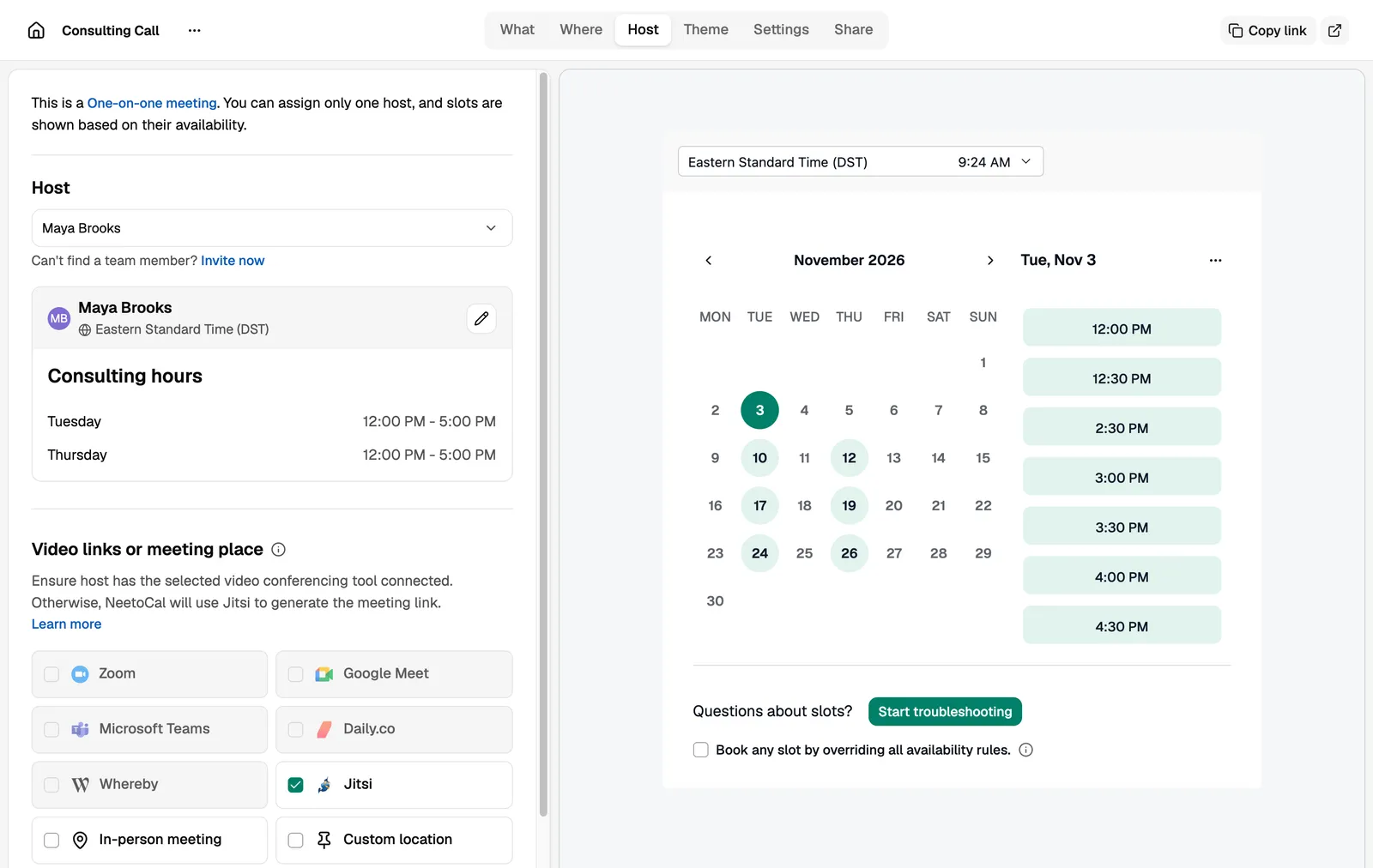
I'm starting 30-minute consulting calls. Create the meeting, make it available Tuesday and Thursday afternoons, and use Jitsi.
Your AI assistant creates a meeting with its own availability and Jitsi link, ready to share with clients.
Offer multiple meeting durations
Create a meeting called Customer Onboarding, hosted by me on Google Meet. Set the default duration to 45 minutes, with additional options of 30 and 60 minutes.
Create a one-off booking link
Create a one-off link for my Customer Onboarding meeting that I can send to our new enterprise customer.
Launch a promotion
Create a discount code, LAUNCH25, that gives clients 25% off my Strategy Session meeting. Set the expiration date to November 30.
Bring a new teammate on board
Add priya@example.com and sam@example.com to our NeetoCal workspace as Standard members.
Permissions and privacy
- Your AI assistant works with your NeetoCal permissions. It can only view and modify information that your role allows.
- You control what your AI assistant can access. Read access is always enabled, while Create and update and Delete are separate permissions. Leave both unchecked if you want your assistant to have read-only access.
- Deleting a meeting with existing bookings preserves its booking history. Similarly, removing a team member deactivates their account rather than permanently deleting it.
- You can disconnect at any time. Simply remove the NeetoCal connector from your AI assistant to revoke its access.
Actions performed through MCP can make changes to your live NeetoCal workspace. Before booking, rescheduling, or canceling meetings, we recommend asking your AI assistant to show you its proposed changes.
Sign in and choose permissions
For sign-in, enter your workspace subdomain, not your email address. For acme.neetocal.com, enter acme.
What each permission allows
| Permission | What it allows |
|---|---|
| Read | See what your role lets you see in the selected workspaces. Always granted. |
| Stay connected | Keep working without asking you to sign in again. Always granted. |
| Create and update | Add new items and change existing ones. |
| Delete | Permanently delete items. This cannot be undone. |
If you leave a permission unticked, a tool that needs it is refused with a message that names it. For example, a read-only connection can list bookings but cannot book, reschedule, or cancel. To grant it later, remove the connector and add it again with the box ticked.
For developers: the OAuth metadata is at https://connect.neetocal.com/.well-known/oauth-authorization-server. The server supports the authorization_code and refresh_token grants, and requires PKCE (S256). Clients register dynamically at https://connect.neetocal.com/mcp/oauth/register, and loopback redirect URIs are accepted. The scopes are read, write, delete, and offline_access. Refresh tokens are issued, so you stay signed in.
Disconnect NeetoCal from ChatGPT
Open the ChatGPT plugins page, find NeetoCal and remove it. ChatGPT loses access to your NeetoCal data straight away.
Troubleshooting
Your AI assistant shows no NeetoCal tools
Restart the client first. Every client reads its MCP config at startup. On Claude or ChatGPT, confirm that you added the connector and finished the sign-in. In ChatGPT, the plugin is created only after you tick I understand and want to continue.
On clients that read a config file, check these:
- The config key. Claude Code, Cursor, Devin, Antigravity, and Antigravity CLI use
mcpServers. VS Code usesservers. Codex uses a[mcp_servers.<name>]section in TOML. A server under the wrong key is ignored silently. - The URL key. Antigravity and Antigravity CLI expect
serverUrl. Claude Code, Codex, Cursor, Devin, and VS Code expecturl. - The endpoint. It is
https://connect.neetocal.com/mcp/messages, with no trailing slash. - The syntax. In JSON, a trailing comma or an unclosed brace makes the whole file unreadable.
The sign-in fails at the workspace step
The first screen asks for a workspace subdomain or the workspace URL, not an email address. For acme.neetocal.com, enter acme.
More fixes are in the NeetoCal MCP troubleshooting guide.
Frequently asked questions
Can ChatGPT manage my NeetoCal bookings?
Yes. Connect ChatGPT to the NeetoCal MCP server to check availability, view bookings, schedule and reschedule meetings, and manage other scheduling tasks. All actions are subject to your NeetoCal permissions. You can add NeetoCal to ChatGPT as a custom MCP server from the plugins page. See Connect NeetoCal to your AI assistant.
Use NeetoCal in other AI assistants
| AI assistant | Setup guide |
|---|---|
| Claude | Use NeetoCal in Claude |
| Claude Code | Use NeetoCal in Claude Code |
| Cursor | Use NeetoCal in Cursor |
| Codex | Use NeetoCal in Codex |
| VS Code | Use NeetoCal in VS Code |
| Antigravity CLI | Use NeetoCal in Antigravity CLI |
| Devin | Use NeetoCal in Devin |
| Antigravity | Use NeetoCal in Antigravity |
| Any other MCP client | NeetoCal MCP server |
Prefer the terminal? The NeetoCal CLI reaches the same data from your shell, your scripts and your coding agent.