





Check requirements
- A Claude account on the web, desktop or mobile app.
- A NeetoKB account.
- On a Claude Team or Enterprise plan, an admin must turn NeetoKB on under Organization settings → Connectors first.
Connect NeetoKB to Claude
- Find NeetoKB in the Claude directory and click Connect to Claude.
- Sign in to your NeetoKB account, then select your workspace and permissions.
NeetoKB works with Claude on the web, desktop, and mobile. If you're using a Claude Team or Enterprise plan, an administrator may need to enable NeetoKB under Organization settings → Connectors.
More ways to connect Claude
NeetoKB also works in Cowork. If the button reads Request instead of Connect to Claude, a Team plan admin must turn NeetoKB on under Organization settings → Connectors at claude.ai/admin-settings/connectors. Then click Connect to Claude.
To disconnect, open Customize → Connectors at claude.ai/customize/connectors and remove NeetoKB.
If your organization blocks the connector directory, add NeetoKB as a custom connector:
- Open Customize → Connectors, click Add, then click Add custom connector.
- Enter the name NeetoKB and paste
https://connect.neetokb.com/mcp/messages. - Click Continue and sign in to NeetoKB.
Try these prompts
Get answers from your knowledge base
Your AI assistant can do more than create and update articles in NeetoKB. It can also search your knowledge base and answer questions about your existing content. Try these:
Do we have an article that explains how to reset a password?
What are our ten most-viewed articles?
Which articles are still in draft, and who created them?
Which categories don't have a single published article?
Which articles haven't been updated in the last year?
Which articles still mention "Acme Classic"?
Who has written the most articles?
Which articles are in private categories?
Which articles do we recommend on the billing page?
Your AI assistant searches your articles and categories to find the answers. For tasks involving thousands of articles, the CLI may be a better choice. See MCP or CLI: which should you use?
Find content gaps and improve articles
Identify missing articles
Paste the most common support questions from this week and ask:
Which of these questions aren't covered by an existing knowledge base article? For each gap, suggest the most appropriate category.
You get a list of documentation gaps, ranked by how frequently customers ask about each topic.
Check before answering a customer
A customer wants to know whether we support single sign-on with Okta. Find the relevant knowledge base article, quote the section that answers their question, and give me the link.
Find outdated content
Find published articles that still mention our old pricing plans. List each article and highlight the sentences that need updating. Don't make any changes yet.
Update a product name across articles
We renamed "Acme Classic" to "Acme Standard". Find every article that mentions the old name, show me the proposed changes, and update the articles after I approve them.
Write and publish
Turn a support conversation into an article
Your support team has just helped a customer resolve a complicated setup issue. Paste the conversation and ask:
Turn this conversation into a help article for customers facing the same problem. Place it under Integrations → Slack and save it as a draft.
Your AI assistant creates the article, places it in the appropriate category, and creates the category if needed. The article remains a draft until you explicitly ask for it to be published.
Turn release notes into help content
Here are the release notes for version 4.2. Identify existing articles that need updating based on these changes, and draft a new help article explaining the Custom domains feature.
Rewrite for clarity
Rewrite the "Getting started" article using simpler language and numbered steps. Show me the revised version before saving any changes.
Review and publish drafts
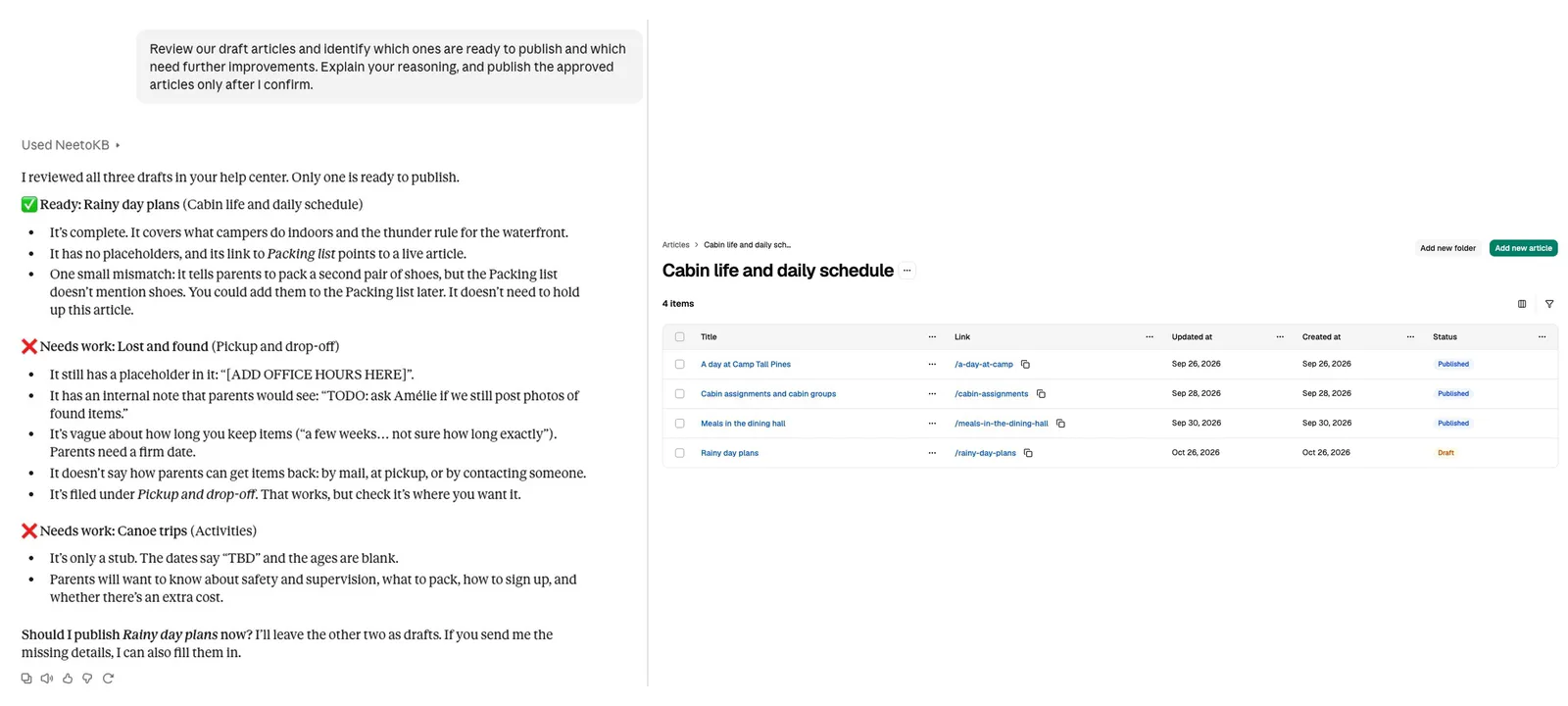
Review our draft articles and identify which ones are ready to publish and which need further improvements. Explain your reasoning, and publish the approved articles only after I confirm.
Share an article privately
Generate a private link to the Enterprise SSO setup article that expires in seven days. I want to share it with a prospective customer.
Generating a new private link replaces the existing one. Your AI assistant will let you know if an older link will stop working.
Manage your team
Invite writers
Invite oliver@example.com and sam@example.com to our NeetoKB workspace with the Editor role.
The specified role must already exist in your workspace.
Remove someone who left
Sam has left the company. Deactivate sam@example.com in NeetoKB.
Their articles stay published and stay credited to them.
Permissions and privacy
- Your assistant works as you. When you sign in with NeetoKB, it sees what you see and does only what your role allows. Private categories hide their articles from visitors to your public knowledge base, not from your team, so your assistant can read them too.
- Publishing permissions depend on your role. Creating and editing drafts requires permission to modify articles, while publishing requires permission to manage them.
- You control what your AI assistant can do. Read access is always enabled. The Create and update permission allows it to create, edit, publish, and trash articles. The Delete permission allows it to delete items for good, such as trashed articles, categories, tags, and webhooks, and to deactivate team members. Leave both permissions disabled for read-only access.
- Deleting an article for good needs the Delete permission. Moving an article to the trash needs only Create and update, and the article can be restored from the trash. Deactivating a team member also needs Delete, and their articles stay credited to them.
- You can disconnect at any time. Remove the NeetoKB connector from your AI assistant to revoke its access.
New articles are saved as drafts by default unless you explicitly request publication. Before updating or publishing articles, we recommend asking your AI assistant to show you its proposed changes for review.
Sign in and choose permissions
Every NeetoKB workspace has its own subdomain. When you sign in, enter your workspace subdomain, not your email address. For acme.neetokb.com, enter acme.
What each permission allows
| Permission | What it allows |
|---|---|
| Read | See what your role lets you see in the connected workspaces. Always granted. |
| Stay connected | Keep working in the background without asking you to sign in again. Always granted. |
| Create and update | Add new items and change existing ones. |
| Delete | Permanently delete items. This cannot be undone. |
If you leave a permission unticked, a tool that needs it is refused with a message that names the permission. A read-only connection can search and read articles but cannot create, publish, or delete anything.
For developers: the OAuth metadata is at https://connect.neetokb.com/.well-known/oauth-authorization-server. The server supports the authorization_code and refresh_token grants with PKCE (S256) required, and the scopes read, write, delete, and offline_access. Clients register dynamically, per RFC 7591, at https://connect.neetokb.com/mcp/oauth/register, and loopback redirect URIs are accepted. Refresh tokens are issued, so you stay signed in.
Troubleshooting
Your AI assistant shows no NeetoKB tools
Restart the client first. Every client reads its MCP config at startup. On Claude or ChatGPT, confirm that you added the connector and finished the sign-in. In ChatGPT, the plugin is created only after you tick I understand and want to continue.
On clients that read a config file, check these:
- The config key. Claude Code, Cursor, Devin, Antigravity, and Antigravity CLI use
mcpServers. VS Code usesservers. Codex uses a[mcp_servers.<name>]section. A server under the wrong key is ignored silently. - The URL key. Antigravity and Antigravity CLI expect
serverUrl. Claude Code, Codex, Cursor, Devin, and VS Code expecturl. - The endpoint. It is
https://connect.neetokb.com/mcp/messages, with no trailing slash. - The syntax. In JSON, a trailing comma or an unclosed brace makes the whole file unreadable, and other servers stop working too.
The sign-in fails at the workspace step
The first screen needs a workspace subdomain or a workspace URL, not an email address. For acme.neetokb.com, enter acme.
Your AI assistant reaches the wrong workspace
With OAuth, name the workspace in your prompt. To add another one, sign in again and tick it. An API key belongs to one workspace, so add the server a second time with the other key and a different server name.
Claude shows the connector as unauthorized
Open Customize → Connectors, remove NeetoKB, and connect it again from the NeetoKB listing. On a Team plan, Requested means an admin has not turned NeetoKB on yet. An admin turns it on under Organization settings → Connectors.
More fixes are in the NeetoKB MCP troubleshooting guide.
Frequently asked questions
Can Claude search my NeetoKB knowledge base?
Yes. Connect NeetoKB from the Claude directory to search your knowledge base, find relevant articles, retrieve their links, and draft or update content using plain language.
Use NeetoKB in other AI assistants
| AI assistant | Setup guide |
|---|---|
| ChatGPT | Use NeetoKB in ChatGPT |
| Claude Code | Use NeetoKB in Claude Code |
| Cursor | Use NeetoKB in Cursor |
| Codex | Use NeetoKB in Codex |
| VS Code | Use NeetoKB in VS Code |
| Antigravity CLI | Use NeetoKB in Antigravity CLI |
| Devin | Use NeetoKB in Devin |
| Antigravity | Use NeetoKB in Antigravity |
| Any other MCP client | NeetoKB MCP server |
Prefer the terminal? The NeetoKB CLI reaches the same data from your shell, your scripts and your coding agent.