





Check requirements
- A ChatGPT account that can add custom MCP servers from the plugins page.
- A NeetoDesk account.
Connect NeetoDesk to ChatGPT
- Go to chatgpt.com/plugins, click Add at the top right, and choose Add custom MCP server.
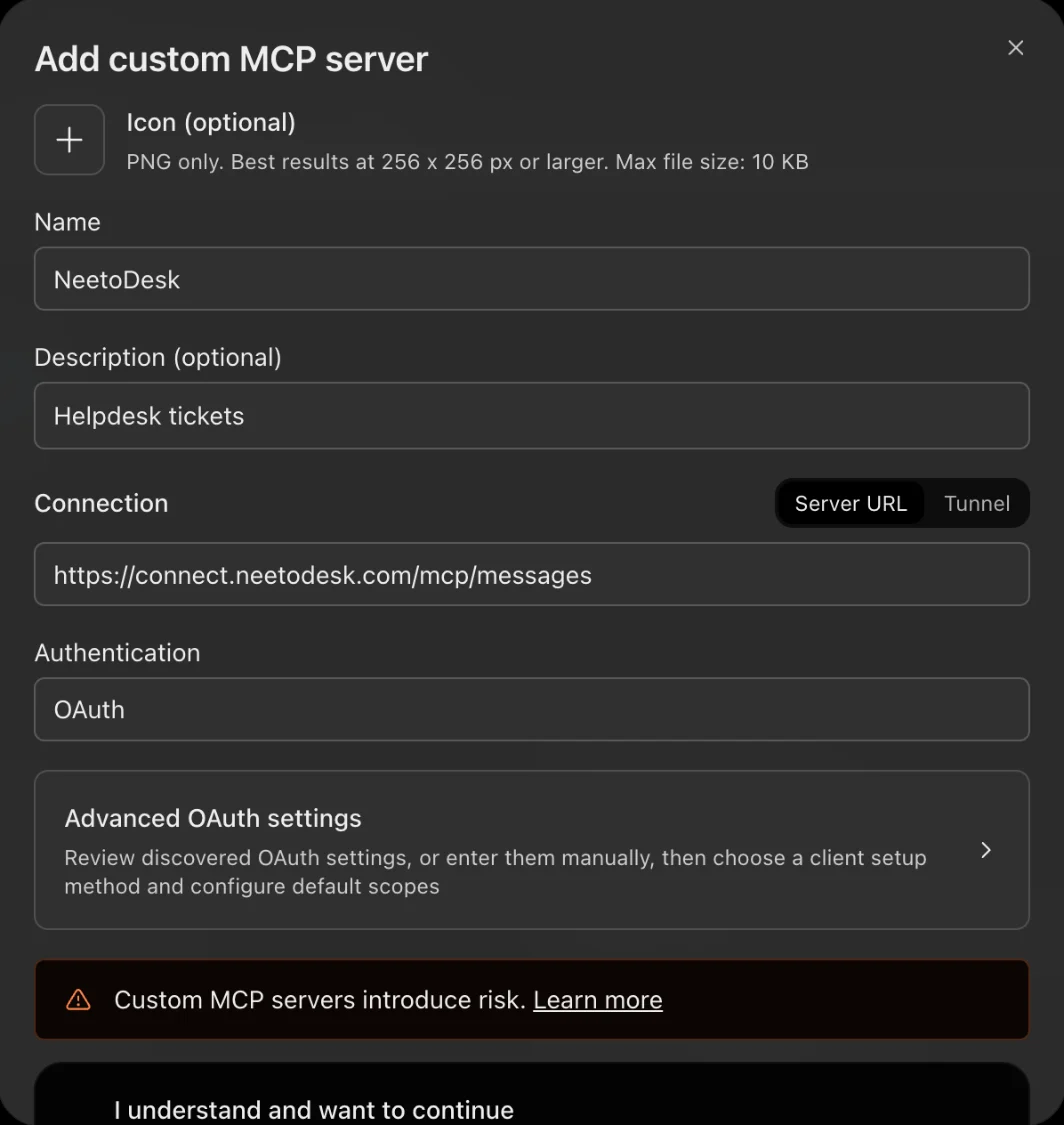
- Name it NeetoDesk, keep the connection on Server URL, and paste
https://connect.neetodesk.com/mcp/messages. - Leave authentication on OAuth, tick I understand and want to continue, and click Create as a plugin. Then sign in to NeetoDesk.
Connect in the ChatGPT desktop app
- Click your profile picture at the bottom left, then click Settings.
- Click Plugins. Click Add, then click Add MCP server.
- Enter the name NeetoDesk and set Type to Streamable HTTP.
- In URL, paste
https://connect.neetodesk.com/mcp/messages. - Leave the other fields empty and click Save.
- Click the MCPs tab. Next to neetodesk, click Authenticate.
- Sign in to NeetoDesk.
Try these prompts
Get answers from your support data
Your AI assistant can do more than manage tickets in NeetoDesk. It can also answer questions about your support data. Try these:
How many tickets did we get in the last 7 days, and how many did we close?
Which agent has the fastest first response time this month?
Which group takes the longest to resolve tickets? Compare last month with this month.
What feedback did customers give in our satisfaction surveys over the last 30 days?
How many open tickets does Oliver have right now?
Which open tickets are unassigned?
Show me all open tickets from customers at acme.com.
Which open tickets are marked urgent or high priority?
How many tickets with "refund" in the subject have we had this month?
What's the oldest ticket that's still open?
Your assistant analyzes your tickets and reports to find the answers. For questions involving thousands of tickets, the CLI is a better fit. See MCP or CLI: which should you use?
Triage tickets and catch up on conversations
Triage the morning queue
Review the open tickets received since yesterday. For each ticket, provide a one-line summary, suggest a priority, and recommend who should handle it. Don't make any changes yet.
Your assistant reviews the new tickets and their conversations, then suggests a triage plan. You decide which changes to apply.
Catch up on a long ticket
Summarize ticket #1042. What is the customer asking for, what have we told them so far, and what's still unresolved?
Get the full context in a paragraph instead of scrolling through dozens of replies.
Spot a pattern
Find tickets with "password reset" in the subject. Is this an isolated issue, or are multiple customers experiencing the same problem? When did it start?
Balance the workload
Which agents have the most open tickets? Suggest who should pick up the next five unassigned tickets.
Prepare the weekly support review
Prepare last week's support review. Include new versus closed tickets, first response and resolution times by agent and group, and customer satisfaction survey results. Highlight any metrics that declined.
Take action on tickets
Apply the triage recommendations
Set tickets #1042, #1047 and #1051 to high priority and assign them to priya@example.com.
Draft replies for your team to review
Draft replies to the open tickets about passwords. Keep them short and friendly. Don't send anything.
Each draft appears on the corresponding ticket with the agent's signature, ready for someone to review, edit, and send.
Leave an internal note
Add an internal note to ticket #1042 saying engineering is investigating and we expect a fix on Thursday.
Turn a conversation into a ticket
A customer reports a bug in a Slack thread or email. Copy the conversation and ask:
Create a high-priority ticket for bob@client.com from this thread. Tag it "bug" and assign it to the Engineering group.
Your assistant creates the ticket's subject and description using the conversation, preserving the relevant context.
Add tags without removing existing ones
Add the tag "billing" to tickets #1042 and #1047, and keep their existing tags.
Close resolved tickets
Tickets #1042 and #1051 are done. Close them.
Manage customers and team members
Add a customer
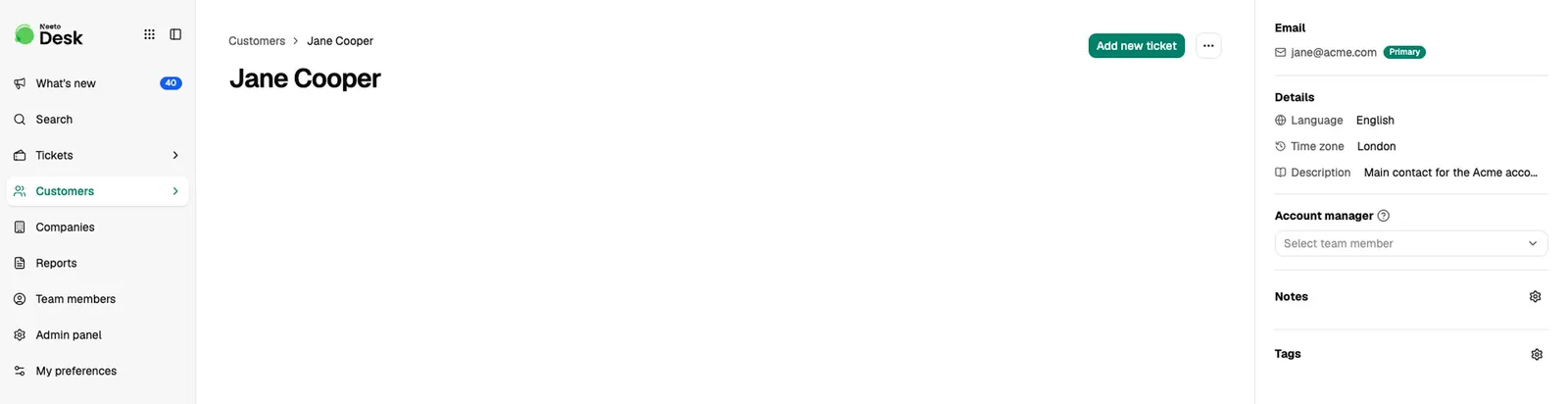
Add a customer: Jane Cooper, jane@acme.com, based in London. Note that she's the main contact for the Acme account.
Invite new agents
Add priya@example.com and sam@example.com to our NeetoDesk workspace as agents, and send them an invitation.
Permissions and privacy
- Your assistant operates within your permissions. When you sign in with NeetoDesk, it sees only the tickets you can see and does only what your role allows. An agent limited to their own tickets or groups gets the same limits through AI.
- You control what your assistant can do. Read access is always enabled, while Create and update and Delete are separate permissions. Leave them off for a read-only connection.
- Your assistant never emails your customers. Comments your assistant adds through MCP are never emailed to the customer, and drafts wait for an agent to send them.
- Moving items to trash, deleting records, and deactivating team members require Delete permission. Moving a ticket to trash or spam, deleting a custom ticket field, and deactivating a team member are refused unless you ticked Delete when you connected. NeetoDesk empties the trash on its own after 30 days. A deactivated team member keeps their history.
- You can disconnect at any time. Remove the NeetoDesk connector from your AI assistant to revoke its access.
Changes made through your AI assistant still trigger your existing automations and notifications. A good habit is to ask your assistant to show you its plan before it updates a batch of tickets, as several prompts above do.
Sign in and choose permissions
The first sign-in screen asks for your workspace subdomain, not your email address. For acme.neetodesk.com, enter acme.
What each permission allows
| Permission | What it allows |
|---|---|
| Read | See what your role lets you see in the selected workspaces. Always granted. |
| Stay connected | Keep working without asking you to sign in again. Always granted. |
| Create and update | Add new items and change existing ones. |
| Delete | Move tickets to trash or spam, permanently delete ticket fields, and deactivate team members. Trashed tickets are emptied after 30 days. |
If you leave a permission unticked, a tool that needs it is refused with a message that names the permission. A read-only connection can list and search tickets but cannot post a comment, update a ticket, or delete anything.
For developers: the OAuth metadata is at https://connect.neetodesk.com/.well-known/oauth-authorization-server. The server supports the authorization_code and refresh_token grants, and requires PKCE (S256). Clients register dynamically (RFC 7591) at https://connect.neetodesk.com/mcp/oauth/register, and loopback redirect URIs are accepted. Refresh tokens are issued, so you stay signed in.
Disconnect NeetoDesk from ChatGPT
Open the ChatGPT plugins page, find NeetoDesk and remove it. ChatGPT loses access to your NeetoDesk data straight away.
Troubleshooting
Your AI assistant shows no NeetoDesk tools
Restart the client first. Every client reads its MCP config at startup. On Claude or ChatGPT, confirm that you added the connector and finished the sign-in. In ChatGPT, the plugin is created only after you tick I understand and want to continue.
On a client that reads a config file, check these:
- The config key. Claude Code, Cursor, Devin, Antigravity, and Antigravity CLI use
mcpServers. VS Code usesservers. Codex uses a[mcp_servers.<name>]section. A server under the wrong key is ignored silently. - The URL key. Antigravity and Antigravity CLI use
serverUrl. Claude Code, Codex, Cursor, Devin, and VS Code useurl. - The endpoint. It is
https://connect.neetodesk.com/mcp/messages, with no trailing slash. - The syntax. In JSON, a trailing comma or an unclosed brace makes the whole file unreadable.
The sign-in fails at the workspace step
The first screen needs a workspace subdomain or a workspace URL, not an email address. For acme.neetodesk.com, enter acme.
Your AI assistant reaches the wrong workspace
With OAuth, name the workspace in your prompt. To add another one, sign in again and tick it. An API key belongs to one workspace, so add the server again with the other key and a different server name.
More fixes are in the NeetoDesk MCP troubleshooting guide.
Frequently asked questions
Can ChatGPT manage my NeetoDesk tickets?
Yes. Connect ChatGPT to the NeetoDesk MCP server to look up tickets, summarize conversations, update statuses and priorities, assign tickets, draft replies, and generate reports. All actions are subject to your NeetoDesk permissions. You can add NeetoDesk to ChatGPT as a custom MCP server from the plugins page. See Connect NeetoDesk to your AI assistant.
Use NeetoDesk in other AI assistants
| AI assistant | Setup guide |
|---|---|
| Claude | Use NeetoDesk in Claude |
| Claude Code | Use NeetoDesk in Claude Code |
| Cursor | Use NeetoDesk in Cursor |
| Codex | Use NeetoDesk in Codex |
| VS Code | Use NeetoDesk in VS Code |
| Antigravity CLI | Use NeetoDesk in Antigravity CLI |
| Devin | Use NeetoDesk in Devin |
| Antigravity | Use NeetoDesk in Antigravity |
| Any other MCP client | NeetoDesk MCP server |
Prefer the terminal? The NeetoDesk CLI reaches the same data from your shell, your scripts and your coding agent.