





Check requirements
- Antigravity installed on your computer.
- A NeetoChat account.
Connect NeetoChat to Antigravity
-
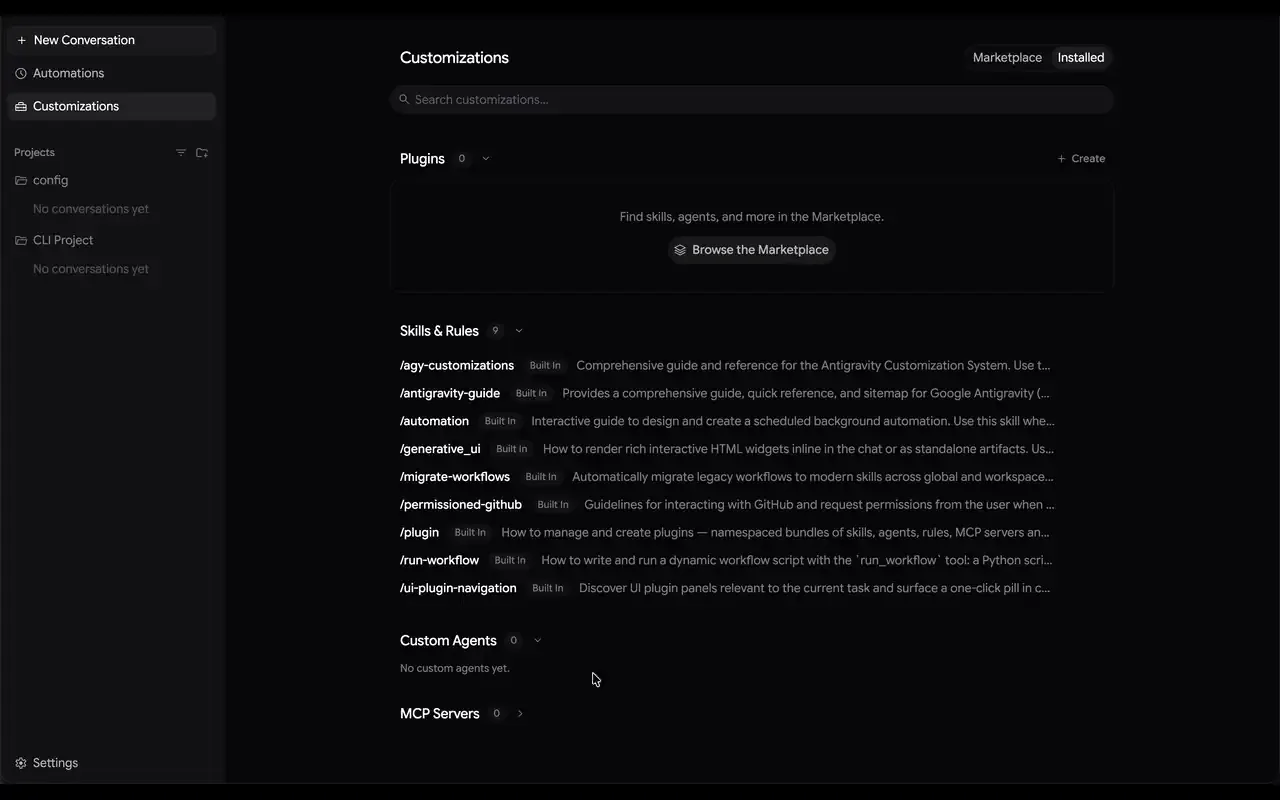
In Antigravity, open Settings → Customizations → Open MCP Config.
-
Paste this into
mcp_config.json, then reload Antigravity:{ "mcpServers": { "neetochat": { "serverUrl": "https://connect.neetochat.com/mcp/messages" } } } -
In Customizations → Installed, click Authenticate next to neetochat and sign in to NeetoChat.
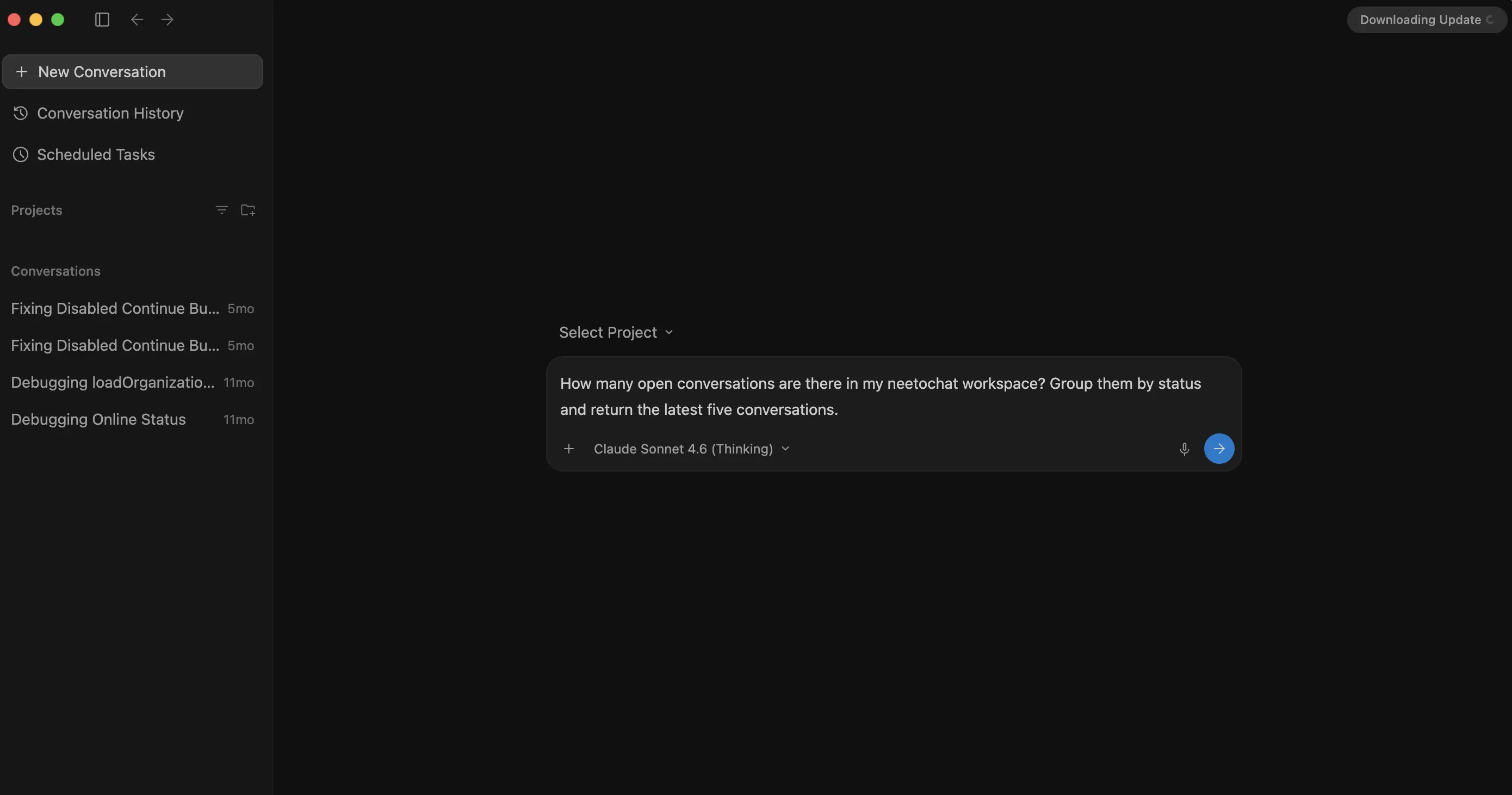
Then ask in a new conversation. Antigravity asks before it uses each NeetoChat tool:
Connect with an API key
An API key reaches the whole workspace, not only what you can see. It is not tied to a person, and role checks do not run.
{
  "mcpServers": {
    "neetochat": {
      "serverUrl": "https://connect.neetochat.com/mcp/messages",
      "headers": {
        "Authorization": "Bearer YOUR_API_KEY"
      }
    }
  }
}
Try these prompts
How many NeetoChat conversations are open right now?
Reply to the conversation with jane@acme.com and let her know her refund has gone through.
How many conversations changed status in the last 7 days?
Ask your assistant to confirm before it posts a reply, changes a conversation's status, or deactivates a team member. MCP actions affect your live workspace.
Troubleshooting
Antigravity connects but the tools are missing
Go to Settings → Customizations → Installed and click Authenticate next to neetochat.
The connection is refused or unauthorized
With an API key, the header must read Bearer YOUR_API_KEY. With OAuth, click Authenticate again next to neetochat.
More fixes are in the NeetoChat MCP troubleshooting guide.
Frequently asked questions
Can I use NeetoChat MCP with Antigravity?
Yes. Add the server to mcp_config.json under Customizations and authenticate, or connect with an API key for workspace-wide access. See the NeetoChat MCP setup guide for other clients.
Use NeetoChat in other AI assistants
| AI assistant | Setup guide |
|---|---|
| Claude | Use NeetoChat in Claude |
| ChatGPT | Use NeetoChat in ChatGPT |
| Claude Code | Use NeetoChat in Claude Code |
| Cursor | Use NeetoChat in Cursor |
| Codex | Use NeetoChat in Codex |
| VS Code | Use NeetoChat in VS Code |
| Antigravity CLI | Use NeetoChat in Antigravity CLI |
| Devin | Use NeetoChat in Devin |
| Any other MCP client | NeetoChat MCP server |
Prefer the terminal? The NeetoChat CLI reaches the same data from your shell, your scripts and your coding agent.