





Check requirements
- A ChatGPT account that can add custom MCP servers from the plugins page.
- A NeetoChat account.
Connect NeetoChat to ChatGPT
-
Open ChatGPT plugins.
-
Click Add, then click Add custom MCP server.
-
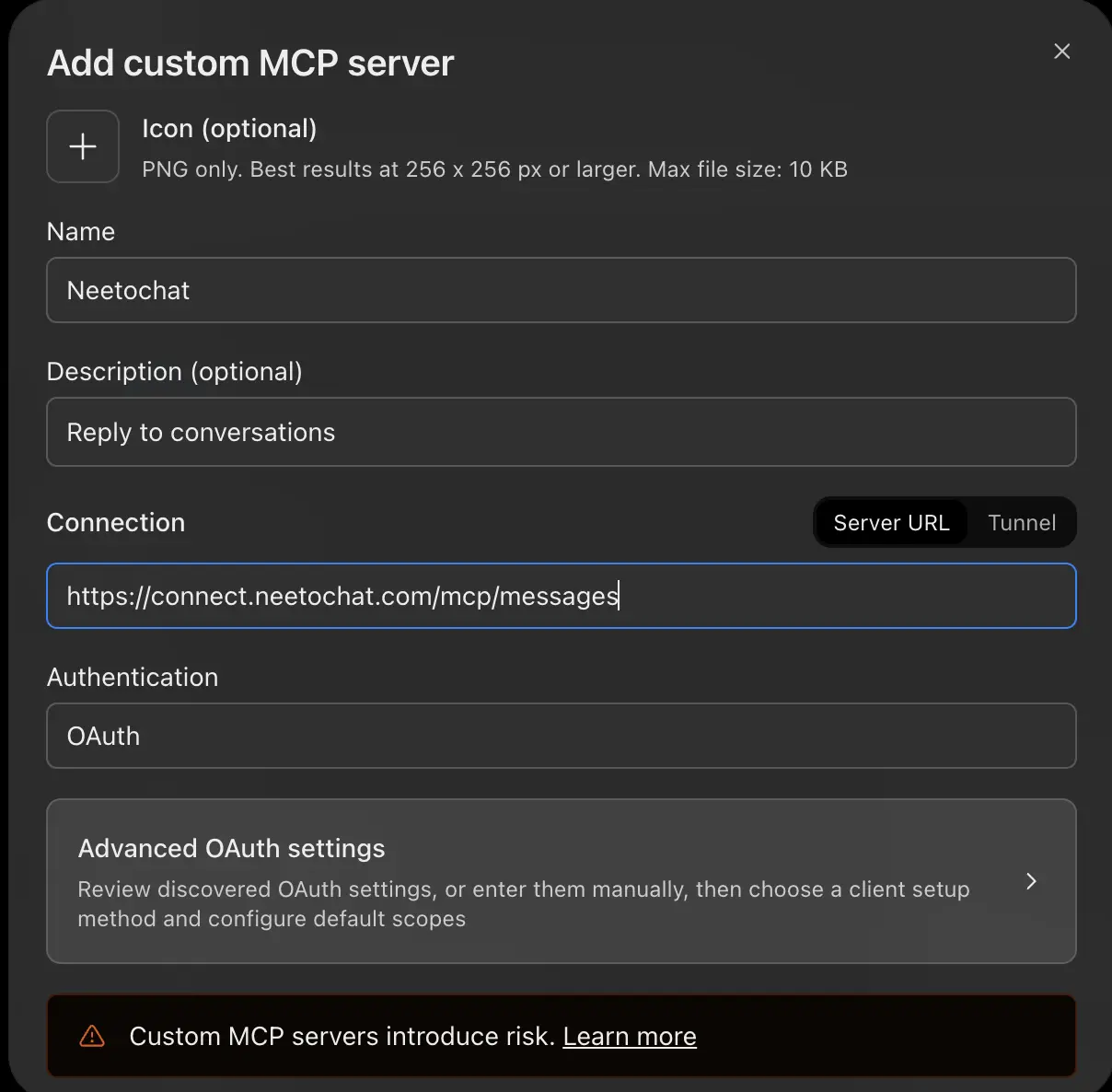
Type NeetoChat as the name, keep Server URL, and paste
https://connect.neetochat.com/mcp/messages. -
Keep OAuth, tick I understand and want to continue, and click Create as a plugin.
-
Sign in to NeetoChat and choose your workspace.
Connect in the ChatGPT desktop app
- Click your profile picture at the bottom left, then click Settings.
- Click Plugins. Click Add, then click Add MCP server.
- Enter the name NeetoChat and set Type to Streamable HTTP.
- In URL, paste
https://connect.neetochat.com/mcp/messages. - Leave the other fields empty and click Save.
- Click the MCPs tab. Next to neetochat, click Authenticate.
- Sign in to NeetoChat.
Try these prompts
Get answers from your support data
How many conversations did we get in the last 7 days, and how many did we reply to?
What did customers rate their chats this month, broken down by good, okay and bad?
Which group has the most open conversations assigned to it right now?
How many open conversations does Oliver have right now?
Which open conversations haven't been replied to in the last hour?
Your assistant analyzes your conversations and reports to find the answers. For questions involving thousands of conversations, the CLI is a better fit. See MCP or CLI: which should you use?
Catch up and reply
Summarize the conversation with jane@acme.com. What is she asking for, and what's still unresolved?
Reply to the conversation with jane@acme.com and let her know her refund has gone through.
Add an internal note to the conversation with jane@acme.com saying billing is investigating.
Manage contacts and team members
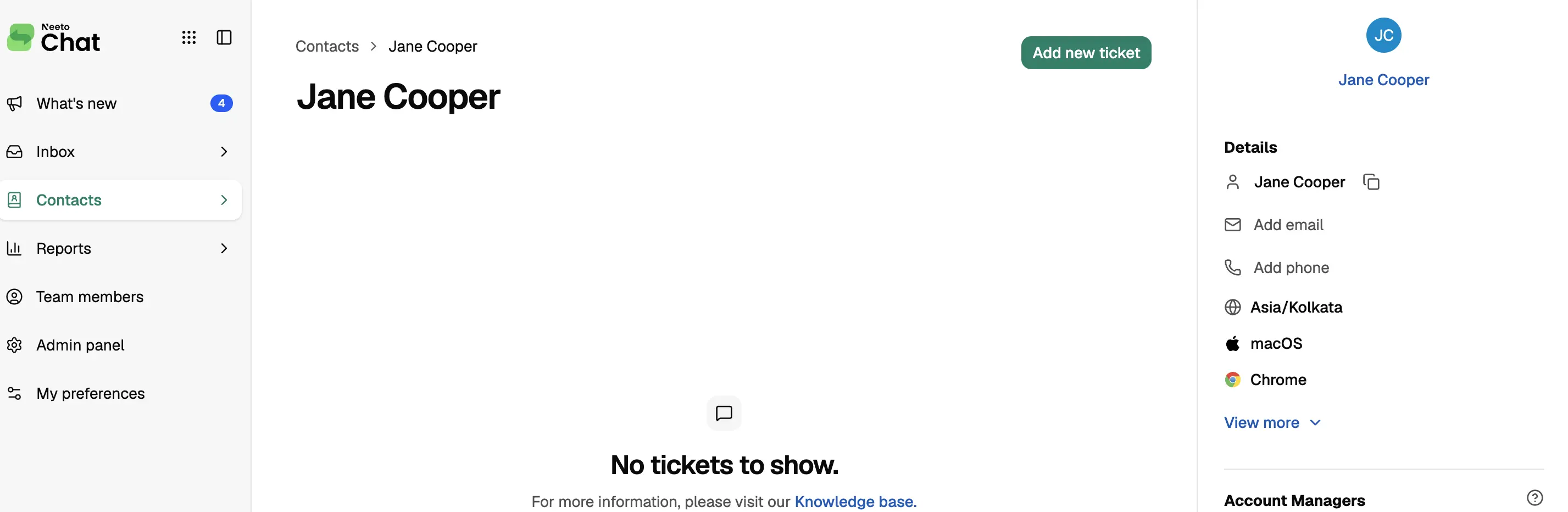
Add a contact: Jane Cooper, jane@acme.com, with the note that she's the main contact for the Acme account.
Add priya@example.com and sam@example.com to our NeetoChat workspace as agents, and send them an invitation.
Permissions and privacy
- Your assistant operates within your permissions. When you sign in with NeetoChat, it sees only the conversations you can see and does only what your role allows.
- You control what your assistant can do. Read access is always enabled, while Create and update and Delete are separate permissions.
- A reply's visibility depends on the channel. On the chat widget it just shows in the chat. On an email conversation it's emailed to the visitor. On a connected channel like Instagram or WhatsApp, the assistant can read but not reply.
- Deactivating a team member requires Delete permission.
- You can disconnect at any time.
Sign in and choose permissions
The first sign-in screen asks for your workspace subdomain, not your email address. For acme.neetochat.com, enter acme.
What each permission allows
| Permission | What it allows |
|---|---|
| Read | See what your role lets you see in the selected workspaces. Always granted. |
| Stay connected | Keep working without asking you to sign in again. Always granted. |
| Create and update | Add new conversations, contacts and messages, and change existing ones. |
| Delete | Deactivate a team member. |
If you leave a permission unticked, a tool that needs it is refused with a message that names the permission.
Disconnect NeetoChat from ChatGPT
Open the ChatGPT plugins page, find NeetoChat and remove it. ChatGPT loses access to your NeetoChat data straight away.
Troubleshooting
Your AI assistant shows no NeetoChat tools
Confirm you added the connector and finished the sign-in. The plugin is created only after you tick I understand and want to continue.
The sign-in fails at the workspace step
The first screen needs a workspace subdomain, not an email address. For acme.neetochat.com, enter acme.
More fixes are in the NeetoChat MCP troubleshooting guide.
Frequently asked questions
Can ChatGPT manage my NeetoChat conversations?
Yes. Connect ChatGPT to the NeetoChat MCP server to look up conversations, summarize them, reply to visitors, manage contacts and team members, and pull reports. All actions are subject to your NeetoChat permissions. See Connect NeetoChat to your AI assistant.
Use NeetoChat in other AI assistants
| AI assistant | Setup guide |
|---|---|
| Claude | Use NeetoChat in Claude |
| Claude Code | Use NeetoChat in Claude Code |
| Cursor | Use NeetoChat in Cursor |
| Codex | Use NeetoChat in Codex |
| VS Code | Use NeetoChat in VS Code |
| Antigravity CLI | Use NeetoChat in Antigravity CLI |
| Devin | Use NeetoChat in Devin |
| Antigravity | Use NeetoChat in Antigravity |
| Any other MCP client | NeetoChat MCP server |
Prefer the terminal? The NeetoChat CLI reaches the same data from your shell, your scripts and your coding agent.