





Check requirements
- Cursor installed on your computer.
- A NeetoChat account.
Connect NeetoChat to Cursor
-
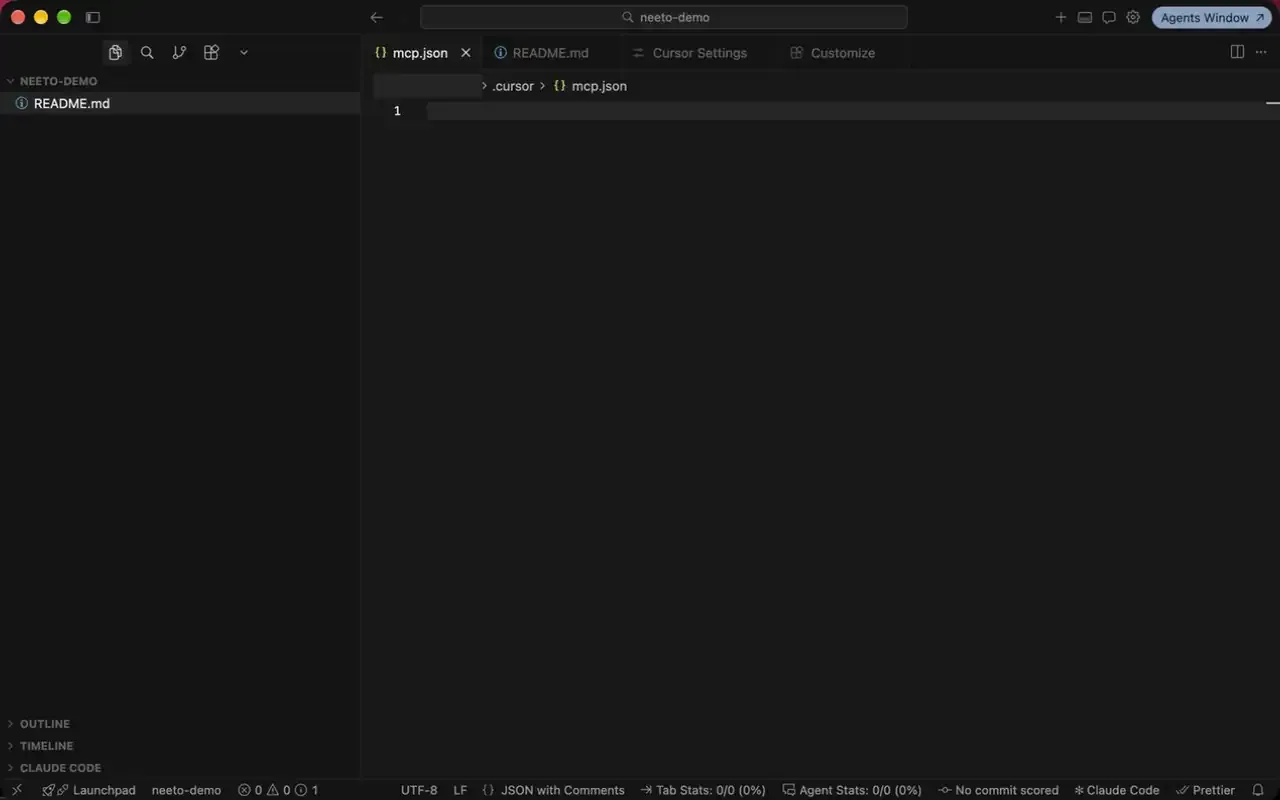
Open or create
~/.cursor/mcp.json. -
Paste this into the file:
{ "mcpServers": { "neetochat": { "url": "https://connect.neetochat.com/mcp/messages" } } } -
Restart Cursor and sign in to NeetoChat when Cursor asks.
In the Cursor CLI, run cursor-agent mcp login neetochat once to sign in. Then ask from your terminal:

Connect with an API key
An API key reaches the whole workspace, not only what you can see. It is not tied to a person, and role checks do not run.
Add the server to ~/.cursor/mcp.json, then restart Cursor:
{
  "mcpServers": {
    "neetochat": {
      "type": "http",
      "url": "https://connect.neetochat.com/mcp/messages",
      "headers": {
        "Authorization": "Bearer YOUR_API_KEY"
      }
    }
  }
}
Try these prompts
How many NeetoChat conversations are open right now?
Find conversations mentioning "refund not received".
Reply to the conversation with jane@acme.com and let her know her refund has gone through.
List the team members in my workspace.
How many conversations changed status in the last 7 days?
Ask your assistant to confirm before it posts a reply, changes a conversation's status, or deactivates a team member. MCP actions affect your live workspace.
Troubleshooting
Your AI assistant shows no NeetoChat tools
Restart Cursor after editing ~/.cursor/mcp.json. Check the MCP settings page shows neetochat as connected.
The connection is refused or unauthorized
With an API key, the header must read Bearer YOUR_API_KEY. With OAuth, remove and re-add the server to restart the sign-in.
More fixes are in the NeetoChat MCP troubleshooting guide.
Frequently asked questions
Can I use NeetoChat MCP with Cursor or Codex?
Yes. Cursor, Codex, VS Code with GitHub Copilot, Devin, Antigravity, and Antigravity CLI can all connect to the NeetoChat MCP server. See the NeetoChat MCP setup guide for instructions specific to each tool.
Use NeetoChat in other AI assistants
| AI assistant | Setup guide |
|---|---|
| Claude | Use NeetoChat in Claude |
| ChatGPT | Use NeetoChat in ChatGPT |
| Claude Code | Use NeetoChat in Claude Code |
| Codex | Use NeetoChat in Codex |
| VS Code | Use NeetoChat in VS Code |
| Antigravity CLI | Use NeetoChat in Antigravity CLI |
| Devin | Use NeetoChat in Devin |
| Antigravity | Use NeetoChat in Antigravity |
| Any other MCP client | NeetoChat MCP server |
Prefer the terminal? The NeetoChat CLI reaches the same data from your shell, your scripts and your coding agent.