





Check requirements
- A Claude account on the web, desktop or mobile app.
- A NeetoChat account.
- On a Claude Team or Enterprise plan, an admin must turn NeetoChat on under Organization settings → Connectors first.
Connect NeetoChat to Claude
-
Click Connect to Claude.
-
Sign in to NeetoChat and choose your workspace and permissions.
This works with Claude on the web, desktop, and mobile. On Claude Team and Enterprise plans, an admin may need to enable NeetoChat under Organization settings → Connectors.
More ways to connect Claude
If you see Request instead of Connect to Claude, a Team plan admin must turn NeetoChat on under Organization settings → Connectors at claude.ai/admin-settings/connectors. Then click Connect to Claude.
To disconnect, open Customize → Connectors at claude.ai/customize/connectors and remove NeetoChat.
If your organization blocks the connector directory, add NeetoChat as a custom connector:
- Open Customize → Connectors, click Add, then click Add custom connector.
- Enter the name NeetoChat and paste
https://connect.neetochat.com/mcp/messages. - Click Continue and sign in to NeetoChat.
Try these prompts
Get answers from your support data
Your AI assistant can do more than reply to conversations in NeetoChat. It can also answer questions about your support data. Try these:
How many conversations did we get in the last 7 days, and how many did we reply to?
What did customers rate their chats this month, broken down by good, okay and bad?
Which group has the most open conversations assigned to it right now?
How many open conversations does Oliver have right now?
Which open conversations haven't been replied to in the last hour?
What's the oldest conversation that's still open?
Catch up and reply
Catch up on a long conversation
Summarize the conversation with jane@acme.com. What is she asking for, what have we told her so far, and what's still unresolved?
Get the full context in a paragraph instead of scrolling through dozens of messages.
Reply to a visitor
Reply to the conversation with jane@acme.com and let her know her refund has gone through.
Leave an internal note
Add an internal note to the conversation with jane@acme.com saying billing is investigating and we expect a resolution by Thursday.
Turn a conversation into a prompt for the team
Find every open conversation about login issues, summarize what each visitor is asking, and suggest who should reply first.
Manage contacts and team members
Add a contact
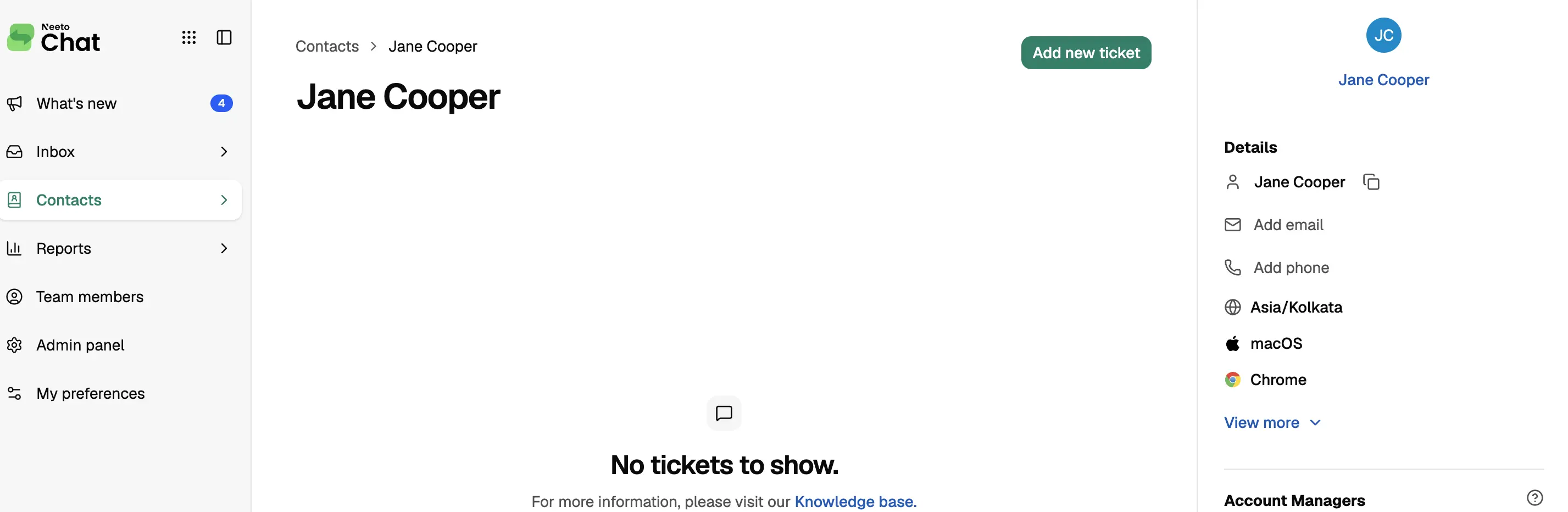
Add a contact: Jane Cooper, jane@acme.com, with the note that she's the main contact for the Acme account.
Invite new agents
Add priya@example.com and sam@example.com to our NeetoChat workspace as agents, and send them an invitation.
Permissions and privacy
- Your assistant operates within your permissions. When you sign in with NeetoChat, it sees only the conversations you can see and does only what your role allows. An agent limited to their own conversations or groups gets the same limits through AI.
- You control what your assistant can do. Read access is always enabled, while Create and update and Delete are separate permissions. Leave them off for a read-only connection.
- A reply's visibility depends on the channel. On the chat widget it just shows in the chat. On an email conversation it's emailed to the visitor. On a connected channel like Instagram or WhatsApp, the assistant can read but not reply.
- Deactivating a team member requires Delete permission. A deactivated team member keeps their history.
- You can disconnect at any time. Remove the NeetoChat connector from your AI assistant to revoke its access.
Sign in and choose permissions
The first sign-in screen asks for your workspace subdomain, not your email address. For acme.neetochat.com, enter acme.
What each permission allows
| Permission | What it allows |
|---|---|
| Read | See what your role lets you see in the selected workspaces. Always granted. |
| Stay connected | Keep working without asking you to sign in again. Always granted. |
| Create and update | Add new conversations, contacts and messages, and change existing ones. |
| Delete | Deactivate a team member. |
If you leave a permission unticked, a tool that needs it is refused with a message that names the permission. A read-only connection can list and search conversations but cannot post a reply, update a conversation, or deactivate anyone.
Troubleshooting
Your AI assistant shows no NeetoChat tools
Restart the client first. Every client reads its MCP config at startup. Confirm you added the connector and finished the sign-in. On a Team plan, check whether an admin needs to turn NeetoChat on under Organization settings → Connectors.
The sign-in fails at the workspace step
The first screen needs a workspace subdomain, not an email address. For acme.neetochat.com, enter acme.
Your AI assistant reaches the wrong workspace
With OAuth, name the workspace in your prompt. To add another one, sign in again and tick it.
Claude shows the connector as unauthorized
Open Customize → Connectors, remove NeetoChat, and connect it again from the NeetoChat listing. On a Team plan, Requested means an admin has not turned NeetoChat on yet. An admin turns it on under Organization settings → Connectors.
More fixes are in the NeetoChat MCP troubleshooting guide.
Frequently asked questions
Can Claude manage my NeetoChat workspace?
Yes. Connect NeetoChat from the Claude directory to reply to conversations, manage contacts and team members, and analyze your support team's performance using plain language.
Use NeetoChat in other AI assistants
| AI assistant | Setup guide |
|---|---|
| ChatGPT | Use NeetoChat in ChatGPT |
| Claude Code | Use NeetoChat in Claude Code |
| Cursor | Use NeetoChat in Cursor |
| Codex | Use NeetoChat in Codex |
| VS Code | Use NeetoChat in VS Code |
| Antigravity CLI | Use NeetoChat in Antigravity CLI |
| Devin | Use NeetoChat in Devin |
| Antigravity | Use NeetoChat in Antigravity |
| Any other MCP client | NeetoChat MCP server |
Prefer the terminal? The NeetoChat CLI reaches the same data from your shell, your scripts and your coding agent.